

 Analysis byWeUseApps
I think Zoom Workplace makes the most sense when a meeting is only one part of the work you need to get done. It is a business app from zoom.com, but it is also aimed at people who want conversation, calling, and shared work to sit closer together instead of being scattered across several tools. That breadth is useful, though it also means the app can feel busy when all you wanted was to join one call.
Zoom Workplace is free to download, and its Everyone age rating makes it broadly accessible. Optional in-app purchases range from $10 to $169.99 per item, so it is worth checking what a particular paid option covers before committing. The app has a 4.1 average from around 4.6 million ratings, and it has passed a billion installs. Those figures suggest wide use, but they do not guarantee that every meeting will run smoothly on every device or network.
Where meeting setup tends to get confusing
The first point of friction is often not the call itself but finding the right way into it. If you are joining from an invitation, check that you have opened the intended meeting and are using the account or display name expected by the host. When a meeting does not appear as you expect, returning to the invitation and joining from there is usually a more useful first step than repeatedly tapping around the app.
I also recommend checking your audio and video choices before an important call rather than waiting until everyone is watching. Make sure the device is using the microphone and speaker you actually intend to use, especially if you have headphones connected. If you cannot hear others, first check the selected output and the device’s own volume; if they cannot hear you, check that your microphone is not muted and that the app is using the intended input.
Video trouble deserves a similarly simple check. Confirm that video is enabled in the meeting and that another app is not already using the camera. If the picture is still unavailable, leaving and rejoining can clear a temporary connection hiccup. These steps will not fix every cause, but they help distinguish a meeting setup mistake from a deeper device or network problem.
Do a quick check before the call
For a routine meeting, I would open the invitation a few minutes early, confirm the meeting details, and check the audio controls before speaking. If you are joining from a phone, avoid switching between apps while you are trying to solve an audio issue; it can make it harder to tell whether the problem is the meeting, the device, or the connection. A short, deliberate check is less stressful than making several changes at once.
It also helps to decide what you need from the app before you open it. If you only need to attend a call, go straight to the meeting rather than exploring the broader workspace. If you are organizing follow-up work, leave time to find the relevant chat or document afterward. Keeping those tasks separate in your mind makes the many parts of the app easier to navigate.
When access or controls do not look right
If you cannot find a meeting control or a workspace item, first check that you are in the right meeting or conversation. The app brings several kinds of work together, so a control associated with one context may not be where you expect it in another. Returning to the main area and reopening the relevant meeting or conversation is a sensible way to reorient yourself.
If the app behaves oddly, close and reopen it, then check whether the problem remains. For a call that keeps dropping or sounds broken, compare the experience on another connection if one is conveniently available. Avoid assuming that reinstalling is the first answer: it is disruptive, and it will not solve a weak network or a problem affecting the other person’s device.
How I would use it in a working day
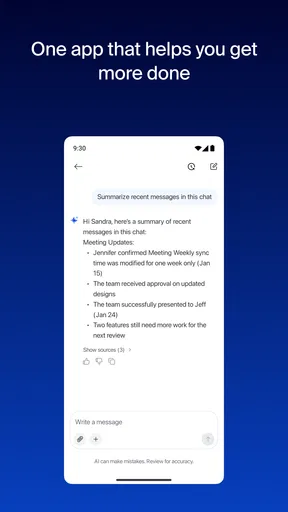
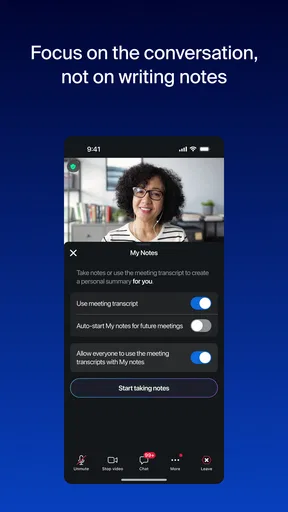
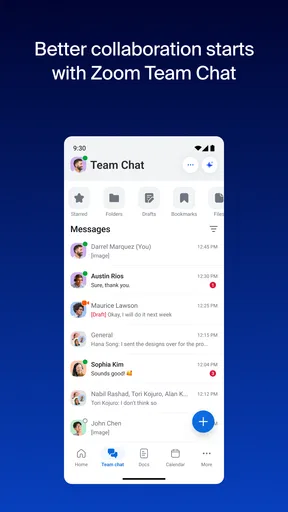
The strongest case for Zoom Workplace is a day that moves between live discussion and follow-up. Imagine a small team holding a planning call, using chat to clarify a point afterward, and keeping related notes or documents in the same working environment. The benefit is not that every task becomes effortless; it is that people may spend less time remembering which separate app holds the next part of the conversation.
A useful, less obvious habit is to treat chat as a bridge rather than a dumping ground. After a meeting, use the conversation to point colleagues toward the decision or next action, instead of expecting them to reconstruct the whole call from a stream of messages. That makes the app more helpful for people who missed a discussion and reduces the temptation to repeat the same context in several places.
Another practical trade-off is that combining tools can simplify handoffs but increase the importance of choosing a consistent place for work. If one colleague posts a decision in chat while another expects it in a document, the all-in-one setup can still leave the team fragmented. I would agree with coworkers in advance about where final notes belong and use chat for quick coordination. The app cannot establish that habit for you.
For someone who frequently joins calls while away from a desk, the mobile format is convenient because meetings and related communication are available from one app. Still, a phone is not always the best place for detailed document work or a long, complicated discussion. I would use it for joining, listening, and quick follow-up, then move to a more comfortable device when the task needs sustained attention.
Compared with using separate work apps
Compared with a meeting-only tool, Zoom Workplace aims to cover more of the work around a call. That can be a real advantage for a team already using its wider workspace, but it is not automatically better than choosing a dedicated tool for each job. Separate apps can make responsibilities clearer and may suit people who prefer a minimal meeting interface. The cost of that approach is switching between tools and keeping conversations, calls, and documents connected by hand.
The right choice depends on how your team actually works. If meetings are occasional and your colleagues already have a settled chat and document setup, replacing those habits may add friction rather than remove it. If calls are frequent and the same group needs to coordinate before and after them, a combined workspace is more compelling. I would decide based on the team’s handoffs, not on the appeal of having many capabilities under one name.
What to expect from the broader workspace
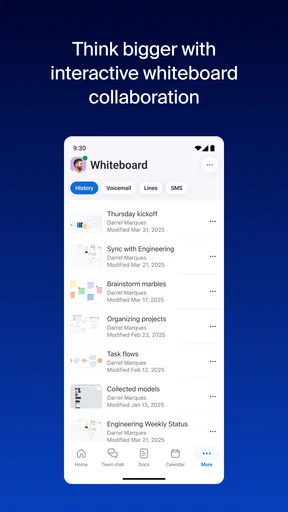
The app’s positioning includes meetings, chat, phone, and documents, but the presence of those areas does not mean every user needs all of them. Someone who only joins external calls may barely need the rest. A team that wants to bring more communication into one place may find the broader scope useful, though it should agree on which parts it will actually use. Otherwise, the extra options can make the interface feel like a collection of destinations rather than a clear daily routine.
Because optional purchases are available, I would also separate the decision to install the app from the decision to pay for anything. Try the basic workflow your team needs first, then check the in-app purchase details if you run into a specific limitation. That is more reliable than assuming the free download includes every capability or, at the other extreme, paying before you know whether your group will adopt the app.
When the app may not be the problem
A choppy call can come from the connection at either end, not just from the app. If voices cut out, video freezes, or joining takes unusually long, check whether other online activity is competing for the connection and try a steadier network if available. Ask whether other participants are seeing the same issue; if only one person is affected, their device or connection may be the likelier place to investigate.
Likewise, a missing camera image or silent microphone can reflect the device’s current settings or another app using the hardware. Check the basic controls before changing several settings at once. If a problem occurs only in one meeting, rejoining and confirming the selected audio or video source can help narrow it down. If it persists across different meetings and apps, looking at the device or connection makes more sense than blaming the meeting workspace alone.
For trouble finding shared work, make sure you are looking in the relevant conversation or workspace and that you have opened the right context. A colleague may also need to clarify where they placed an item. This is a good example of an organizational limitation rather than a technical failure: having calls, chat, and documents close together does not automatically make their boundaries obvious to every team member.
Who should choose another approach
I would not recommend making this the center of your workday if you only need a simple way to attend occasional calls and do not want a broader workspace. In that case, a lighter meeting-focused option may be easier to understand. It may also be a poor fit for a team unwilling to agree on where decisions and follow-ups belong, because more communication channels can create more places to check.
On the other hand, people who regularly move between meetings and team coordination are more likely to appreciate the combination. The app is especially practical when colleagues already expect to use Zoom and can establish a shared routine for chat and documents. Its business focus is clear, but individual usefulness still depends on whether the group adopts the same workflow.
A practical verdict after weighing the trade-offs
Zoom Workplace is a capable choice for people who want more than a video call and are willing to use its wider work environment deliberately. I like the idea of carrying a discussion into follow-up without making every task a separate app, and the broad adoption gives many teams a familiar starting point. Its history goes back to January 24, 2013, and it supports devices running Android 9 or later, which helps set expectations for older phones.
My main reservation is that breadth can become clutter. People who only want to join a call may find the extra destinations distracting, while teams that do not establish clear habits can scatter decisions across meetings, chat, and documents anyway. I would begin with one concrete use case—such as recurring team calls with chat-based follow-up—and see whether it genuinely reduces switching before making it central to more work.
My recommendation: choose Zoom Workplace if your routine regularly moves from meeting to coordination and you value having those activities close together. Keep the setup simple, test audio and video before important calls, and agree with colleagues where final decisions should live. If you need only occasional meetings or prefer a narrowly focused tool, a simpler alternative may serve you better.
What we like
- One account works across mobile and desktop devices.
- Meeting hosts can mute participants and manage access.
- Captions make spoken discussions easier to follow.
- Calendar integrations help keep meetings organized.
- Screen sharing supports presentations and remote collaboration.
What could be better
- Some advanced features require a paid plan.
- Video calls can use substantial mobile data.
- Meeting quality depends on a stable internet connection.
- The many settings can feel overwhelming for new users.
- Background effects may perform poorly on older devices.