 Analysis byWeUseApps
I see Microsoft Authenticator as a practical security tool, not something that makes signing in magically effortless. Its main value is that it can replace repeated password entry with a sign-in approval on your phone, while also helping protect accounts that still rely on passwords. That makes it especially useful if you use Microsoft services regularly or want one familiar place for several accounts. The trade-off is that an authenticator app becomes part of your access routine: if your phone is unavailable, you need a sensible backup plan.
Where it makes sign-ins easier
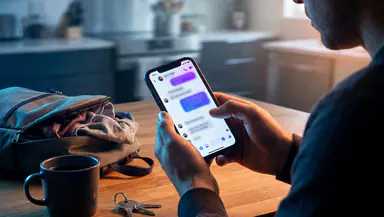
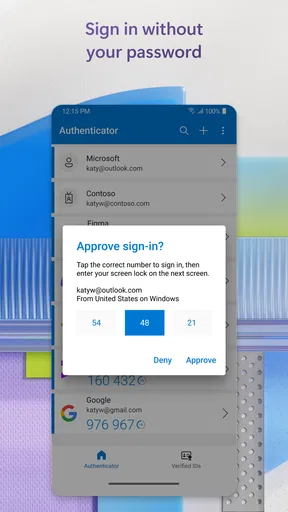
In everyday use, the biggest improvement is avoiding the cycle of typing a password, waiting for a code, and entering that code before it expires. When a supported Microsoft sign-in asks for approval, I can confirm it on my phone instead. That small change matters most when I’m moving between devices or logging in somewhere I don’t use often. It also reduces the temptation to reuse a simple password just to make repeated sign-ins less annoying.
The app is built by Microsoft Corporation and sits in the business category, though its usefulness isn’t limited to office accounts. It can serve people managing personal Microsoft sign-ins as well as work or school access, depending on how those accounts are configured. The important distinction is that the app helps with authentication; it does not independently decide which sign-in methods an organization allows. If your workplace has specific security rules, those still shape what you can do.
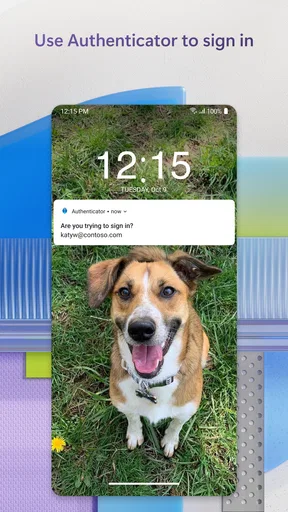
For supported accounts, approving a prompt is often more convenient than hunting for a one-time code. That convenience is also a security improvement over approving a request automatically: I recommend pausing long enough to check whether the sign-in is one I actually started. If a prompt arrives while I’m not trying to log in, declining it is the sensible response. A quick approval habit is useful only when it includes that moment of attention.
A useful fit for mixed account routines
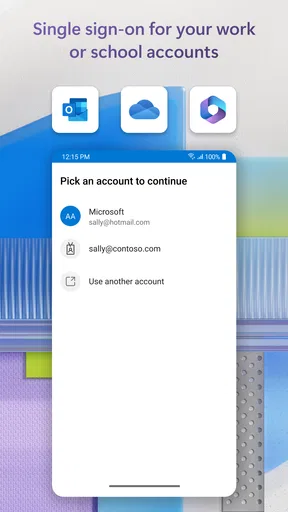
I find the app most valuable when sign-ins are spread across personal and work contexts. A person who checks a Microsoft account on a laptop, joins a work service on a phone, and occasionally signs in from a shared or newly configured device can benefit from keeping authentication close at hand. The phone becomes a confirmation tool rather than a place to store passwords in memory or notes.
A realistic example: I’m setting up a new laptop before a meeting and need to access a Microsoft account. Instead of trying several remembered password variations, I can follow the account’s supported sign-in flow and respond to the request on my phone. If the request is unexpected, I stop rather than treating every prompt as routine. That combination of speed and deliberate checking is the app’s strongest everyday case.
There is a useful trade-off here. Passwordless sign-in can feel much smoother, but it depends on the account and sign-in process supporting it. Other accounts may still require a password or a code. I wouldn’t install the app expecting every website or service to become password-free; it is most compelling when the accounts you actually use can take advantage of its approval flow.
Codes, prompts, and the limits of one app
Authenticator apps are often compared with text-message codes, built-in password managers, or the security tools already provided by a service. Microsoft Authenticator’s clearest advantage is the direct approval experience for compatible Microsoft sign-ins. A text message may be more familiar, but it means waiting for a message and manually entering a code. A password manager is better suited to creating and organizing unique passwords; it solves a related problem, but not the same one. I would use each tool for its own job rather than expect this app to replace all account security habits.
For accounts that use time-based verification codes, an authenticator can also reduce dependence on receiving a text at the moment of sign-in. That can be handy when messages are delayed or a phone has weak reception, although the account must support that method and be set up for it. The practical tip is to configure the authentication method while you can still access the account normally, rather than waiting until you are locked out and rushing through setup.
One less obvious point is that prompts and codes are not interchangeable in every sign-in flow. A service may ask for a direct approval, while another asks you to enter a generated code. I check what the sign-in screen requests instead of assuming the same method will appear everywhere. That modest bit of care prevents wasted time and makes it easier to spot a request that doesn’t match what I’m doing.
The friction I would plan around
The phone is both the convenience and the dependency. If it is out of battery, misplaced, or simply not with you, an approval-based sign-in can become a hurdle. Before relying on the app for an important work or personal account, I would make sure the account has recovery options I understand and can reach. That might mean retaining an allowed backup method or following the account administrator’s recovery guidance. The key is not to assume the authenticator alone is a complete recovery plan.
Changing phones also deserves a little preparation. Authentication access is tied to the accounts and their setup, so I would not wipe or trade in an old device until I had confirmed that I could sign in from the new one and that my important accounts were covered. The exact process can vary by account. For a work account, an administrator may control recovery or require re-registration; for a personal account, the account’s own recovery settings matter. This is the sort of maintenance people tend to overlook until it becomes urgent.
There can also be a small attention cost. A sign-in prompt interrupts whatever I’m doing, and approving it requires a phone interaction. If you frequently work in places where you cannot keep your phone nearby, or you dislike relying on a second device, this may feel less convenient than a method already built into your computer or organization’s workflow. Security is not frictionless, and I prefer to judge the app by whether that friction is manageable rather than pretend it disappears.
Who I would recommend it to
I’d recommend Microsoft Authenticator to people who regularly sign in to Microsoft accounts and want a straightforward way to approve supported requests on a phone. It is also a reasonable choice for someone who has several accounts that accept authenticator-based verification and wants fewer text-message interruptions. Its business focus makes it particularly relevant for employees and students whose organizations use Microsoft sign-in, though the organization’s setup determines what is available.
I would be more cautious about recommending it as the only security measure to someone who has no reliable access to a phone or has not set up account recovery. It is also not the best answer for a person seeking a full password-management system with a dedicated workflow for generating and organizing passwords. In that case, a password manager is the more appropriate primary tool, with an authenticator used alongside it where supported.
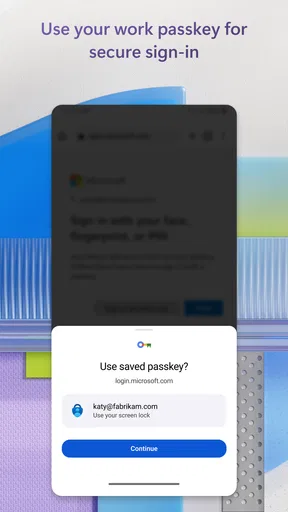
People who rarely sign in to Microsoft services may not gain much from adding another app to their routine. If a service’s built-in passkey or security-key process already fits your devices and needs, that option may be simpler for that particular account. I see the authenticator as a useful layer for compatible sign-ins, not a reason to abandon every other security method you already use well.
What its track record suggests—and what it doesn’t
The app has been available since January 13, 2015, and its current version is 6.2609.6214. It is free, has an Everyone age rating, and requires Android 8.0 or later on Android. Its reach is substantial: it has over 100 million installs, an average rating of 4.6 from around 2.8 million ratings, and about 116,000 written reviews. Those figures suggest that many people find it useful, but they don’t guarantee that every organization or account supports the sign-in method you want.
I’d treat the app’s broad adoption as reassurance that it is a familiar option, not as a substitute for checking your own account setup. Before depending on it for work, confirm that your organization permits the method and understand what to do if you change devices. For a personal account, make sure recovery details are current. These two small checks make a bigger difference to the experience than installing the app and hoping everything is ready automatically.
My verdict
Microsoft Authenticator is at its best when it turns a supported sign-in into a quick approval without encouraging careless tapping. I like the practical balance: it can make access less tedious while adding a deliberate confirmation step, and it can reduce dependence on passwords or text messages in the right account setup. Its limits are real, especially the reliance on a phone and the need to plan for recovery or a device change.
If you use Microsoft accounts regularly, I think it is worth trying and setting up thoughtfully. If you need a complete password manager, rarely use compatible services, or cannot count on access to your phone, another approach may suit you better. I’d install it as one part of a broader sign-in routine, test the recovery path before I need it, and approve only requests I recognize. Used that way, it is a sensible everyday security tool rather than a promise that passwords and account-management headaches simply vanish.
What we like
- Supports passwordless sign-in for compatible Microsoft accounts.
- Can approve sign-in requests with a notification tap.
- Offers cloud backup for account recovery on supported platforms.
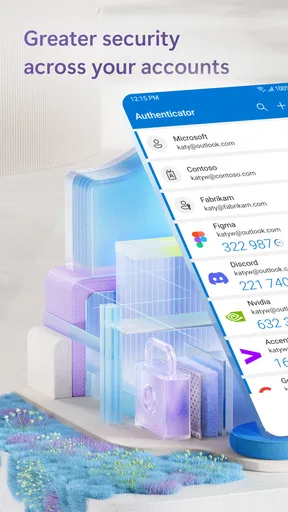
- Works with many non-Microsoft services that use verification codes.
- Can autofill saved passwords in supported apps and browsers.
What could be better
- Cloud backup requires a Microsoft account and may vary by platform.
- Restoring credentials can be difficult when switching between platforms.
- Push approvals depend on an internet connection.
- Some accounts require extra setup before they can use the app.
- Losing access to the phone may require account recovery steps.