 Analysis byWeUseApps
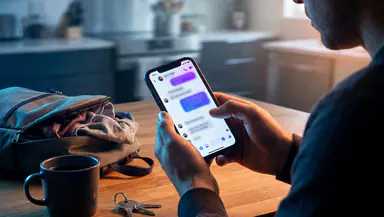
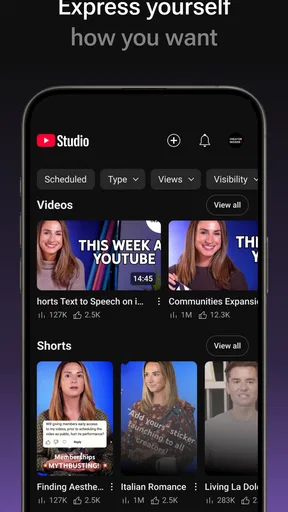
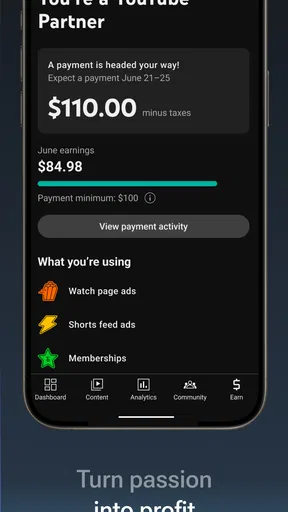
When a YouTube channel needs attention while you’re away from a computer, even a small task can turn into a chore: checking how a video is doing, keeping up with comments, or making sure the channel is in order. YouTube Studio is Google’s mobile app for managing a YouTube channel on the go. I find its appeal easy to understand: it puts channel work within reach, so you can check in from your phone instead of treating every update as a desktop-only job.
A channel check-in that fits around your day
The app sits in the video-player and editor category, but its purpose is channel management rather than watching videos for entertainment. That distinction matters. I wouldn’t open it expecting a mobile editing suite or a replacement for the main YouTube viewing experience. I’d reach for it when I already have a channel to look after and want a convenient way to stay involved with it.
That starting point shapes the whole experience. You begin with an ongoing responsibility—a channel that continues to attract viewers and activity even when you’re not at your desk. The useful question is not simply whether a phone can show you something about your channel; it’s whether being able to check in makes the work feel more manageable. For quick moments between other tasks, that convenience is the app’s central strength.
Google LLC develops the app, which makes it a natural companion to YouTube channel ownership. It is free to download, and its Teen content rating makes it important to pay attention to the audience guidance shown in the app store. Those details aside, the practical draw is straightforward: YouTube Studio gives creators a mobile place to manage their channel, rather than leaving channel activity tied to a computer.
From opening the app to deciding what needs attention
A realistic mobile workflow starts with a reason to check in. Maybe you’ve just published something, have a spare minute, or want to see whether your channel needs a response. Instead of opening a general video app and hunting for creator-related tasks, you go to a tool built around channel management. That focused purpose helps set expectations before you even begin.
From there, I’d treat the app as a place to review the channel and choose what deserves attention next. The value is not that every piece of creator work suddenly becomes effortless; it’s that the channel is accessible during the parts of the day when a laptop is inconvenient. A brief check can help you decide whether to reply, follow up later, or leave a task for a more focused session.
That distinction between checking and doing is useful. Phones are excellent for short, situational tasks, but they are not always the best setting for lengthy creative work. YouTube Studio makes sense as the mobile side of a larger routine: use it to stay connected to the channel, then move to a more comfortable setup if a task calls for extended attention. I like that framing because it avoids expecting one app to cover every creator need.
The workflow also suits people who don’t work on a channel full time. If YouTube is one part of a broader schedule, it can be reassuring to have a dedicated place to check on it without turning a quick moment into a full desktop session. For a creator who is already familiar with the platform, that access can make channel upkeep feel less separate from everyday life.
Keeping creator work connected
Channel management rarely happens in isolation. A video is made, shared with viewers, and followed by activity that may need a creator’s attention. The mobile app fits into that chain as a handoff point between publishing work and the ongoing care of the channel. It helps keep the creator connected to the channel after the main creative session is over.
That handoff can be particularly handy when you are away from your usual workspace. You might notice that the channel needs attention while commuting, waiting for an appointment, or taking a break. Rather than relying on memory, you can check in and make a decision while the situation is still fresh. I see that as a modest but meaningful improvement to the routine: the app helps bridge the gap between creating content and managing what follows.
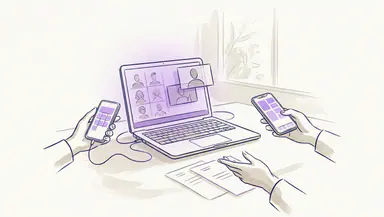
It can also support a more deliberate division of labor. A creator might use a phone for quick channel checks and reserve larger tasks for a computer. If other people help with a channel, the same mobile-first approach can make it easier to stay aware of the channel’s day-to-day needs, though the exact work-sharing arrangement depends on how the channel is run. The app’s broad purpose is clear: manage a YouTube channel on the go.
For viewers who are also creators, having a distinct tool for channel duties helps separate two different modes of using YouTube. Watching videos and looking after a channel are related, but they call for different attention. A dedicated creator app gives that work its own home, which I find more practical than trying to fold every channel task into a general viewing habit.
What the mobile workflow does well
The biggest benefit is accessibility. A channel does not stop being active just because you have stepped away from a desk, and a mobile app gives you a way to stay involved without waiting until you are back at a computer. That can make routine channel care feel more approachable, especially for creators who prefer to handle small tasks as they arise instead of building up a long list.
I also appreciate the clear audience: this is for people who manage a YouTube channel. That focus makes the app easier to evaluate. If you want a way to keep track of creator responsibilities on the move, the idea is immediately relevant. If you only want to watch videos, it is not the tool I would choose for that purpose.
Its established presence is another reason it feels like a familiar option for creators. The app has been available since June 26, 2014, and it has reached over 100 million installs. It holds a 4.3 average rating from around 2.4 million ratings, with about 37,000 written reviews. Those figures suggest a widely used app, though the day-to-day fit still depends on your channel routine and what you need to do from a phone.
Searchers looking for a YouTube channel management app will likely appreciate that the purpose is direct: this is a Google app intended to help manage a channel while away from a computer. It is free, and that removes a purchase decision from the initial download. For a creator deciding whether to add a mobile tool to their workflow, the more important question is whether regular access will save enough effort to become part of their routine.
Where the flow can feel less smooth
Mobile convenience has a natural limit. A phone is easy to carry, but its smaller screen and more interruptible setting can make detailed work feel less comfortable than it would on a computer. Even when an app makes channel access convenient, the creator still has to decide whether a task is suitable for a quick check or deserves a longer, more focused session.
That is where the workflow may break down: not necessarily because the app is difficult to understand, but because the task itself may outgrow the moment. If you open the app for a quick check and discover that you need to spend more time thinking, writing, or organizing, you may prefer to pause and continue later. I think it helps to treat mobile access as a practical extension of channel management, not a promise that every creator task will feel equally comfortable on a phone.
There is also a habit question. An app can make a channel easier to reach, but it cannot decide how often you should check it or how much attention a creator wants to give it. For some people, easy access will reduce friction; for others, frequent notifications and check-ins may feel like another thing competing for time. The best approach is to use the app with a clear purpose, rather than opening it automatically whenever there is a spare minute.
Expectations matter too. The category label might lead someone to anticipate video editing or playback features, but the app’s stated role is managing a YouTube channel on the go. I would judge it on that job. If what you need is a channel companion for mobile access, it is a sensible fit; if you are looking for a complete production workspace, you should think of it as one part of a broader set of tools.
The outcome: a more flexible creator routine
When the workflow clicks, the result is simple: channel care becomes easier to fit into the day. You can stay connected while away from your normal setup, make a quick assessment, and decide what deserves action now versus later. That doesn’t remove the work involved in building a channel, but it can make the everyday management side feel less tied to a particular place.
For new creators, the app can be a practical way to keep channel responsibilities close at hand. For established creators, it can serve as a mobile companion between longer work sessions. In either case, its usefulness depends less on novelty and more on whether checking the channel from your phone genuinely suits the way you work.
My overall impression is that YouTube Studio has a clear, useful role: it helps creators manage their YouTube channels on the go. I’d recommend it to people who want mobile access to channel work and are comfortable treating a phone as a place for check-ins and suitable tasks. The key is to keep expectations grounded, use it to reduce friction where mobile access helps, and switch to a more focused setup when a task calls for it.
As a free app from Google LLC, it is an easy option to consider if you already manage a YouTube channel. Its strong point is convenience, while its main limitation is the familiar one that comes with doing involved work on a small screen. If that trade-off fits your routine, YouTube Studio can make staying on top of your channel feel more flexible and less dependent on being at your computer.
What we like
- Manage video details and settings directly from your phone.
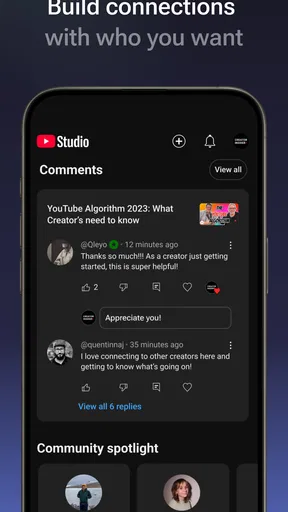
- Reply to viewer comments without opening the main YouTube app.
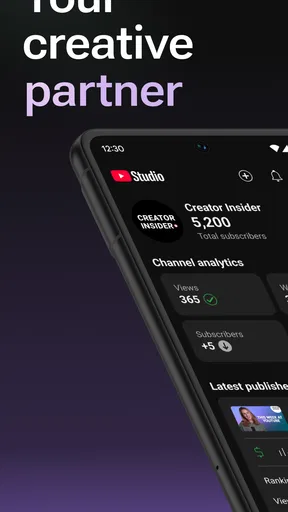
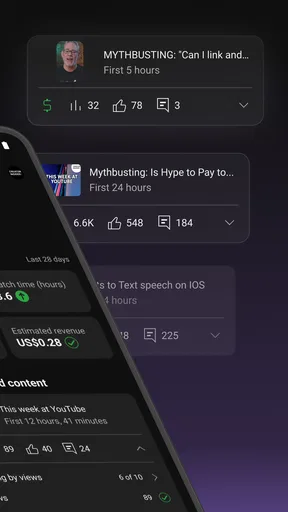
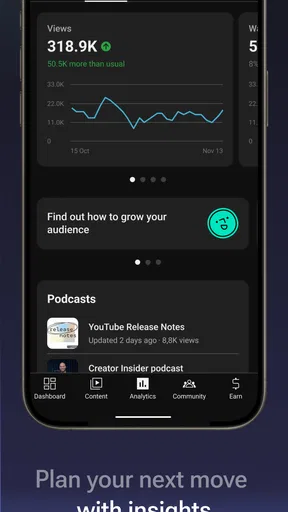
- Track views and watch time with easy-to-read analytics.
- Get notifications about new comments and channel activity.
- Switch between multiple channels linked to your account.
What could be better
- Some advanced editing tools are unavailable in the app.
- Analytics can take time to update after a video is published.
- The interface may feel crowded on smaller phone screens.
- Managing many comments can be slower than using a desktop.
- Some features require an active internet connection.