 Analysis byWeUseApps
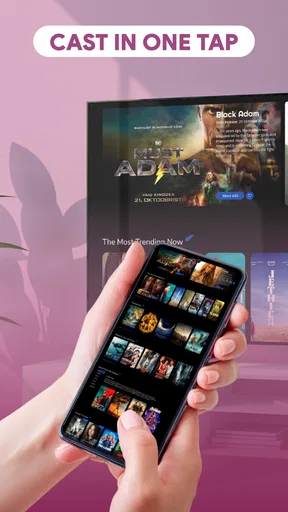
AI Mirror: Screen Mirroring TV is built around a simple idea: get something on your phone onto a larger screen without turning the process into a project. In my view, that makes it most appealing for casual sharing—showing photos to family, putting a video on the living-room television, or letting a few people watch together instead of crowding around one handset. The catch is that casting depends on the devices and network working together, so the experience is only as effortless as that connection.
When the network makes or breaks the experience
This is a video player and editor app from Insumos XP, though its appeal is less about editing than about moving personal media from a phone to a TV. The app is free, rated for Everyone, and currently at version 1.0.2. It has an average rating of 3.2 from around 14,000 ratings, alongside roughly 400 written reviews. Those figures suggest a substantial audience, but the middling average is a useful reminder that casting convenience can vary considerably from one setup to another.
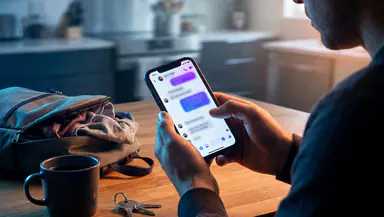
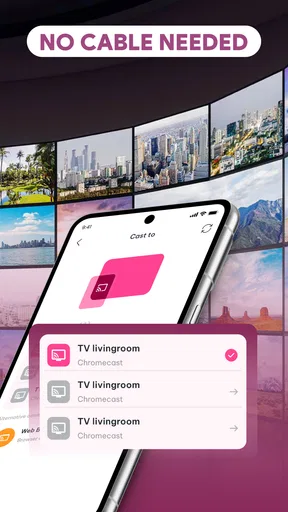
For a smooth session, I would start by checking that the phone and television are connected to the same local network, then open the app and look for the intended display. That small check can save time: a TV connected through a guest network, a phone using mobile data, or a router separating devices can make a nearby screen appear unavailable. The app is not a substitute for a reliable connection, and I would not blame the phone alone if discovery fails.
Network quality matters after the TV appears, too. A weak or busy wireless connection can turn a promising start into buffering, lag, or a less fluid picture. That is especially noticeable with fast-moving video; a static photo slideshow is more forgiving. If a clip stutters, I would first move closer to the router or reduce other heavy network use before repeatedly reconnecting. That is a practical distinction: the same setup may feel fine for showing holiday pictures but frustrating for a film.
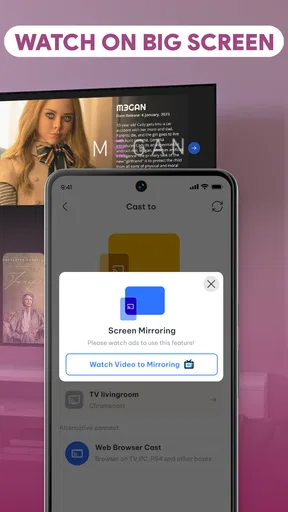
There is also a difference between mirroring a phone’s screen and sending media to a TV. Mirroring can be convenient when I want to show something that is already visible on the handset, but it may also expose notifications or other interruptions on the big screen. For a shared viewing session, I would silence alerts and close unrelated apps first. If the app offers a way to select individual media rather than mirror everything, that approach is generally tidier; I would check the available controls rather than assume every casting mode behaves the same way.
A good fit for spontaneous sharing
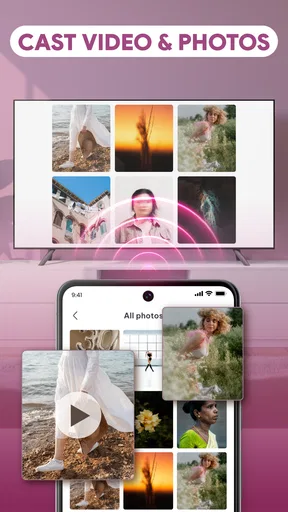
The strongest everyday use case is informal, not theatrical. Imagine someone visiting with photos from a recent trip: instead of passing a phone around, one person can try to put the pictures on the television and let everyone look together. That works best when the display is already connected to the home network and nobody needs to troubleshoot a router or sign into a new service. For a quick family gathering, this kind of convenience can matter more than a long feature list.
It can also help when a phone screen is simply too small for the material. A recipe video, a short clip from a school event, or images that people want to discuss are easier to share when everyone can see them at once. I would treat it as a handy bridge between personal media and a shared screen, rather than as a replacement for a dedicated streaming device or a full media library.
On a trip, at a friend’s home, or in a short-term rental, the experience becomes less predictable. You may not control the television, router settings, or network arrangement, and public or guest networks can restrict communication between devices. In those situations, I would not count on a quick cast as the only way to present something important. Keeping the content available on the phone, or choosing a display method already supported by the TV, is the sensible backup.
Choosing the right method for the moment
Compared with the casting controls built into many phones and streaming apps, a dedicated mirroring app is most useful when the content does not have its own obvious cast button or when I want a straightforward route from phone to screen. But it is not automatically better than built-in tools. If a video service already connects directly to the TV, using that service’s cast control may avoid mirroring the entire phone and can be more comfortable for longer viewing.
There is a trade-off between convenience and control. Mirroring can show content from different apps, but it also means the phone remains part of the viewing chain. The handset may need to stay awake, remain nearby, and be available for controls; incoming interruptions can distract from the shared screen. A TV app or streaming box is usually a better choice for settling in to watch a long programme, while a phone-to-TV tool is more appealing for quick, mixed content.
I would also distinguish this from editing software. Although the app sits in the video-player-and-editor category, someone looking for trimming, color correction, captions, or a production timeline should choose a dedicated editor. Its central value here is getting content onto a larger display, not creating polished video. That distinction helps set expectations before installing it.
What to try when a screen will not appear
If the television does not show up, I would troubleshoot in a calm order rather than tapping every control. First, confirm that both devices are on the same network and that the TV is awake and ready to receive a connection. Then reopen the app and check for the display again. If the home router has separate network names or a guest mode, confirm that the phone and TV have not ended up on isolated networks.
If the device appears but playback is poor, separate discovery trouble from performance trouble. Seeing the TV means the initial connection has at least progressed; buffering or lag points more toward network conditions or the content path. Try a shorter clip or a photo to see whether the problem is specific to video. This quick comparison can tell you whether the whole connection is failing or whether a demanding stream is exposing a weaker link.
When a session stalls, disconnecting and starting again can be more effective than leaving a half-failed attempt running. I would close and reopen the app only after checking the network, since restarting the app cannot fix a TV that is on a different network. If the television offers its own screen-mirroring or casting option, trying that separately can help identify whether the issue is the app or the display’s connection. No single recovery step guarantees a fix, but changing one thing at a time makes the cause easier to spot.
For a presentation or a family event, test the connection before everyone is waiting. Open the app, locate the screen, and try the exact kind of content you plan to show. A still image is not a complete test for a long video, and a video preview does not confirm that notifications will stay out of view. A minute of preparation can prevent the awkward experience of troubleshooting in front of a room.
Keeping the connection and content in mind
Because casting sends viewing activity through a phone and a network-connected display, I would use it thoughtfully with private material. Before mirroring, check what is currently on the phone and silence notifications that could reveal message previews. For photos, choose the items you intend to share instead of opening a whole camera roll in front of other people. These are simple habits, but they matter more when a personal screen is being shown to a room.
Data use deserves a little attention as well. Streaming over a home wireless network is different from relying on a mobile connection, and video can consume more data than browsing still images. If I am away from home and the phone might be using mobile data, I would check the connection before starting a long clip. The television’s network connection can also affect the result, so keeping both devices on a suitable, stable network is the safer approach.
I would not use an unfamiliar public network for sensitive viewing or assume every shared connection is private. A trusted home network is the more comfortable setting for personal photos and videos. If the content is confidential, the safest choice may be not to put it on a shared screen at all. The app’s convenience does not remove the need to think about who can see the display and what else the phone might reveal.
Who should install it—and who should look elsewhere
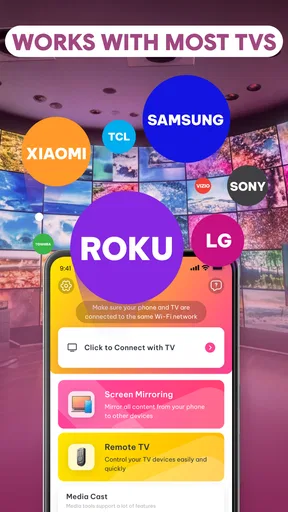
The app has reached over 10 million installs, which shows that many people have tried it, but popularity does not guarantee compatibility with a particular television. I would recommend trying it if you often want to share phone content on a big screen and are comfortable doing a quick network check when devices fail to find one another. Its free price makes that trial easy to consider, and its Everyone age rating suits general household use.
I would skip it if you need dependable casting in places where you cannot manage the network, want a full-featured video editor, or mainly watch long-form content through services that already have TV apps. It may also be a poor fit if you expect every television to appear instantly without checking network settings. The app’s 3.2 average points to a mixed experience, so I would approach it as a useful option to test with your own phone and display rather than a guaranteed fix for every setup.
My connectivity verdict
In my view, AI Mirror: Screen Mirroring TV makes the most sense as a casual sharing tool: useful when a compatible screen is nearby, both devices can communicate over the network, and the goal is to show something quickly. Its value is less about replacing established streaming equipment and more about giving phone content a larger audience. The main friction is also clear: discovery and playback depend on the surrounding connection, not just on tapping a button.
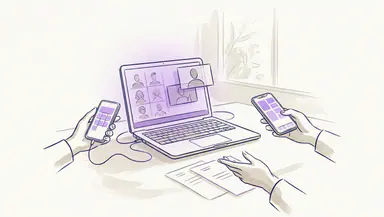
If your usual scenario is a living room with a familiar TV and stable Wi-Fi, it is worth trying for photos and short clips. If you need a robust presentation setup, private viewing, or uninterrupted long sessions, test it in advance or choose a method designed for that situation. That is the fair way to judge this app: a potentially handy shortcut when the network cooperates, but not a reason to ignore the TV, router, and phone that make the experience possible.
What we like
- Works with compatible TVs and streaming devices over Wi-Fi
- Offers a convenient way to view phone content on a larger screen
- Can be useful for sharing photos and videos with others
- Provides a wireless alternative to connecting an HDMI cable
- May support screen sharing for presentations and casual viewing
What could be better
- Requires a compatible receiving device on the same network
- Streaming quality can vary with Wi-Fi strength
- Some features may require a paid subscription
- Screen mirroring can use extra battery power
- Protected video content may not mirror correctly