
 Analysis byWeUseApps
I like a volume tool best when it solves a small, recurring annoyance without making me rethink how my phone works. Volume Control Home is built around that idea: it gives you a place to adjust sound levels from the home screen and offers a way to push media audio beyond the usual full-volume setting. That can be handy when a video or recording is simply too quiet, though it calls for a little restraint as well as a few minutes of setup.
This is a free music and audio utility from Utility Apps Home, aimed at people who want more direct control over sound than the phone’s side buttons provide. It has a 4.4 average from around 4,900 ratings, and more than 500,000 installs. The app is rated for Everyone. Those figures suggest it has found an audience, but the useful question is whether its home-screen approach fits your own routine.
Start with the phone’s normal volume controls
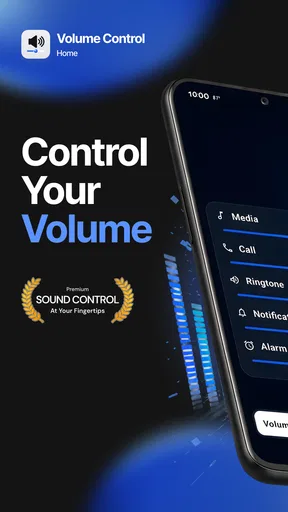
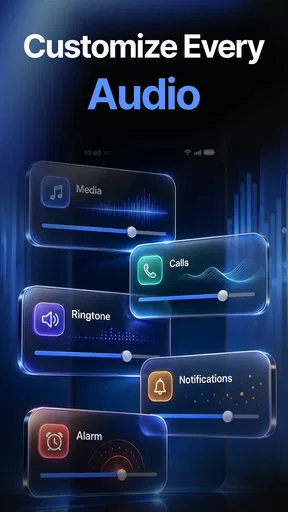
My recommended first step is to use the app as a clearer control panel, not as an instant “make everything louder” switch. Phone buttons commonly adjust whichever audio stream is active at that moment, and it can be easy to change media volume when you meant to change another sound. A home-screen volume control gives you a more deliberate way to reach the level you want.
That distinction matters in ordinary use. If I am about to play a podcast, I want to set its volume before the first loud introduction or advertisement catches me off guard. If I am watching a clip in a quiet room, I might raise the media level gradually rather than jumping straight to maximum. The practical benefit is less about adding power and more about making adjustments visible and repeatable.
Once you have placed the available control where it is easy to reach, try it with different kinds of audio: a spoken recording, music, and a video. They can be mixed and mastered at very different levels. A setting that makes a quiet voice easier to hear may make a music track unpleasantly loud, so I would not treat one boosted level as a universal preset for everything.
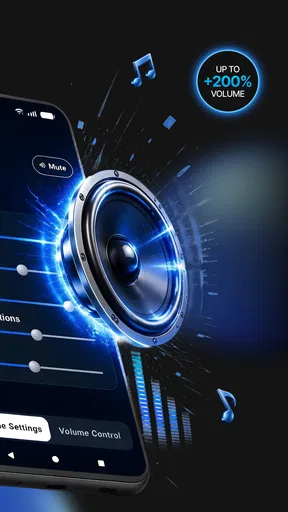
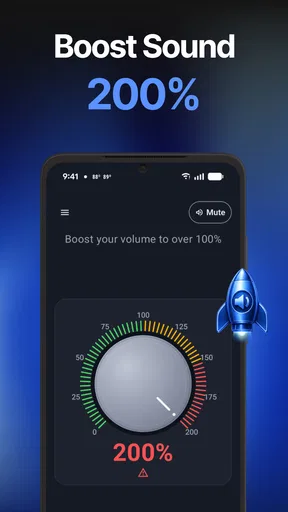
The app’s defining option is amplification beyond the ordinary 100% media ceiling. That can help with quiet source material, but it cannot restore detail that was never captured in the recording. It may also make distortion, hiss, or harshness more obvious. I would increase the level in small steps and stop as soon as speech becomes comfortably clear. Louder is not automatically better, especially when using headphones.
Build a baseline before reaching for extra amplification
A useful habit is to establish a normal listening level first. Start with the phone’s own media control, play a familiar recording, and note where voices and background sounds feel balanced. Only then test the app’s extra boost if the source still sounds too quiet. This gives you a sensible reference point and makes it easier to notice when amplification is adding volume but reducing quality.
For a quiet podcast on a commute, for example, I would first check that the phone is actually playing through the intended output and that the media level is not simply low. If the recording remains subdued, a modest boost may help. On a noisy street, though, raising headphone volume to overpower traffic is a poor trade-off; I would rather use a safer listening environment or better-isolating equipment than keep pushing the sound upward.
The home-screen control is most useful when it becomes part of a small routine: check the output, set a comfortable baseline, and adjust only as needed. It is less helpful if you expect it to diagnose why sound is quiet. Volume control changes level; it does not fix a muted app, a weak recording, a poor connection, or a speaker that is physically obstructed.
Check the settings in the context of your device
Volume behavior can depend on the phone, its operating system, the active audio route, and the app producing sound. So I would test the control with the actual combination you use rather than assume that a setting will behave identically everywhere. Try it while media is playing, then check whether the adjustment affects the sound you intended. This simple test can prevent the familiar frustration of changing one level and discovering that another stream was active.
The current version is 1.6.4, and the minimum operating-system requirement is Android 9. If you are considering installing it on an older device, check compatibility in the app store before planning around it. The interface and available system behavior can also vary by device, so the most reliable way to learn what a control changes is to make a small adjustment while listening and observe the result.
I would also keep your everyday listening level distinct from an occasional boost. If you routinely need to push audio far beyond the usual range, investigate the source first: another recording of the same material may be cleaner, or the media player may have its own level controls. A system-level booster is a convenient fallback, but it is not always the best first tool for fixing quiet content.
Make the home-screen control part of a repeatable routine
The most effective shortcut is often a habit rather than a complicated setup. Put the control somewhere you can reach before starting audio, use it to check the level, and return to a comfortable setting when you finish. That reduces the chance of leaving an unusually high level in place and being surprised by the next song, alert, or video.
One practical pattern is to use the app for deliberate, short adjustments instead of constantly chasing volume while content plays. Before a call recording or lecture, set a moderate level and listen for a few seconds. If voices are still hard to hear, raise it gradually. Before switching to music, reassess rather than assuming the previous setting will suit a more dynamic track. These small checks are especially useful when moving between quiet speech and full-range audio.
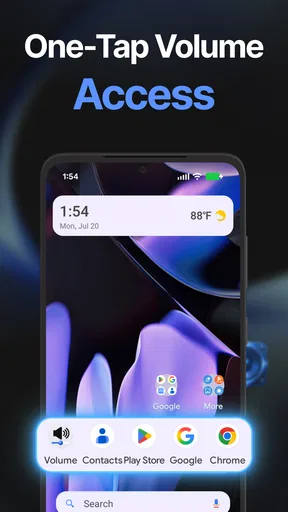
Another useful pattern is to keep the phone’s physical buttons for quick changes and use the home-screen control when you want a more considered adjustment. The buttons remain convenient when the phone is in your hand; the app’s approach is better when you want to see and manage sound from the home screen. It complements the standard controls rather than making them obsolete.
If you share a room, remember that increasing the phone’s speaker output can affect people nearby, while headphone amplification affects your own listening exposure. I would use the smallest boost that solves the problem and lower it again when the audio changes. This is not just politeness: quiet dialogue followed by a loud musical passage can make a fixed high level uncomfortable.
Where amplification helps, and where it reaches its limits
Volume Control Home is a sensible fit for someone who often encounters low-level media and wants a quicker way to adjust it. It may be useful for older recordings, subdued spoken content, or a phone speaker that feels too quiet in a calm indoor setting. The benefit is situational, not magical: the app can raise playback level, but it cannot make a tiny phone speaker reproduce deep bass or turn a noisy recording into clean studio audio.
Compared with relying only on the usual system slider, the app’s appeal is its home-screen-oriented control and extra media amplification. Compared with a dedicated equalizer or audio-processing app, its purpose is narrower. If you want to reshape tone, tune frequencies, or work with a particular player’s sound, a more specialized tool may suit you better. If you only need to set levels without extra processing, the built-in controls may already be enough.
There is also a comfort trade-off. Pushing a speaker or headphones beyond their ordinary range can expose distortion or make sound fatiguing. When that happens, lowering the level is usually the better choice than continuing to boost. For headphones in particular, I would not use amplification to drown out a loud environment; that can encourage listening at an uncomfortable level. Moving somewhere quieter or using equipment designed for the situation is a safer solution.
It is not the right choice for someone looking for a full audio workstation, a sound-quality repair tool, or a guaranteed fix for every quiet app. Nor is it necessary if the phone’s standard volume slider already gives you enough control. Its value comes from a modest, clear job: making media-level adjustments more accessible and allowing extra loudness when the source and listening conditions justify it.
Who will get the most from it
I would recommend trying it if you frequently switch between quiet speech and other media, find yourself opening settings just to adjust sound, or want a home-screen route to volume changes. It is also approachable for someone who wants a straightforward utility rather than a complicated audio suite. The free price makes it easy to consider, though that alone is not a reason to amplify every recording.
I would skip it if you rarely struggle with media volume, need precise sound shaping, or expect it to repair bad recordings. People sensitive to harsh audio should be cautious with any beyond-normal boost and test at a low level. If you depend on the phone for bedtime listening, start quietly and avoid leaving a boosted setting active before switching to a different source.
For an everyday test, choose one quiet recording you know well and compare it at the normal level with a modest increase. Listen for intelligibility as well as loudness: if the words become easier to follow without obvious harshness, the app may be useful for that source. Repeat the check with music before adopting the same level there. Treating each source separately is more reliable than setting one extreme value and forgetting about it.
A practical verdict on Volume Control Home
Volume Control Home, now at version 1.6.4, is best understood as a focused convenience tool rather than a replacement for the phone’s audio system. Its home-screen control can make routine adjustments easier, and extra media amplification gives quiet content another option. The strongest results come from using it thoughtfully: establish a baseline, test one source at a time, and lower the level when switching to louder material.
My recommendation is measured but positive for the right person. If you regularly need an easier way to manage media volume, it is worth trying; if you already have comfortable levels or want deeper audio editing, another approach will be a better fit. The app earns its place when it saves a small bit of effort without encouraging you to mistake maximum loudness for good sound. Use the boost sparingly, keep your listening comfortable, and it can be a practical addition to an everyday audio routine.
What we like
- Adjusts audio levels directly from the home screen.
- Provides a convenient alternative to hardware volume buttons.
- Can make common volume changes quicker.
- Useful when physical buttons are difficult to reach.
- Offers a focused tool without a full audio editing suite.
What could be better
- Requires home screen space for its control widget.
- Widget availability may depend on your launcher.
- May not support every device-specific audio stream.
- System settings can still override selected volume levels.
- The interface may vary across Android versions.