

 Analysis byWeUseApps
I like the idea of a browser that keeps private browsing and video saving close at hand, but the useful question is how well those jobs fit into an ordinary routine. Ge Browser - Safe & Smart is a free tools app from Av sign international, aimed at people who want a separate place to browse and a straightforward way to download videos. I would approach it as a practical secondary browser rather than assume it replaces every feature of a full desktop-style browser.
Make the browser useful before making it your default
My preferred way to start with an unfamiliar browser is to give it one clear job. For this app, that might be opening pages I do not want mixed into my usual browsing, or checking whether a video can be saved for later. Keeping that purpose narrow makes it easier to judge whether the app earns a regular place on the phone without changing every browsing habit at once.
The store summary points to privacy-focused browsing and video downloading, while the short description identifies it as a browser. That combination is most appealing when the two tasks overlap: I can visit a page, look for a video, and try to keep a copy for offline viewing without moving immediately between unrelated apps. It is a focused convenience, not a guarantee that every video on every site can be downloaded.
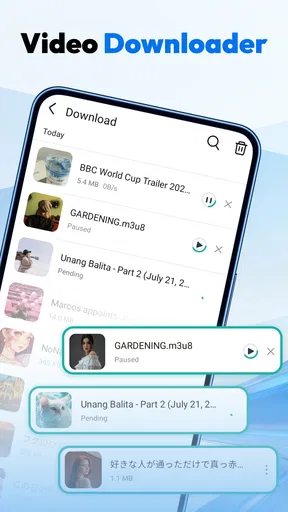
For an everyday example, imagine finding a useful clip while waiting for an appointment and wanting to watch it later when reception is unreliable. I would open it in Ge Browser, check whether the app offers a download for that particular content, and save it only when the page and the content permit it. Before relying on that copy, I would confirm that it appears in the app’s own download area or in the phone’s files, depending on how the app presents the result.
That last check is a small but worthwhile habit. A tap that appears to start a download is not the same as a confirmed, playable file. I would also try opening the saved item before leaving Wi-Fi, especially if I need it for a trip or a commute. This avoids discovering later that the page merely buffered a preview or that the content still depends on an internet connection.
Ge Browser is rated Teen and supports Android 8.0 or later. Those details make it relevant to a broad range of Android phones, though compatibility alone does not tell me how a particular device will handle storage, background activity, or playback. The sensible test is to try a small, nonessential download first and see how it behaves on the phone I plan to use.
Separate browsing by purpose
I would not automatically move saved passwords, bookmarks, and every daily search into a new browser. Instead, I would use Ge Browser for a distinct browsing context and leave my established browser available for tasks that depend on its synced history, extensions, or familiar account setup. This separation is useful in practice: it reduces clutter and helps me remember why I opened each browser in the first place.
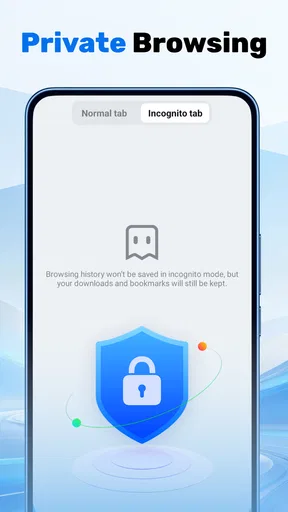
That approach also gives the privacy angle a more realistic role. A browser described as private is not a reason to treat all online activity as invisible. I would still avoid entering sensitive details on a page I do not trust, check that the address belongs to the service I intend to use, and sign out when using a shared device. Privacy-minded browsing is a set of choices, not a substitute for judgement.
If you are considering it as a replacement for your main browser, ask what you actually depend on. People who mainly open a link, read a page, or look for a video may find a compact, task-oriented browser appealing. Someone whose routine depends on synchronized tabs across devices, a carefully organized bookmark library, or specialized extensions may be better served by a more established browser designed around those needs.
Settings and habits worth checking
When I install a browser, I look for the settings that shape its everyday behavior rather than assuming the defaults match my preferences. In Ge Browser, I would check any available privacy, download, and startup controls, then change only what I understand. Because menus and options can vary between versions, I would verify what is actually present in the installed app instead of relying on a checklist copied from another browser.
A useful first pass is to find where downloaded items are shown and how the app signals that a transfer has finished. If there is a choice of download location, I would pick one I can locate later; if the app keeps downloads internally, I would learn how to reach them from its own interface. Knowing that path before saving several files prevents the common frustration of remembering a download but not where it went.
I would also pay attention to how the browser handles pages that open extra tabs or redirect unexpectedly. When browsing a site that is unfamiliar, I would close anything I did not intentionally open rather than continue through a chain of pop-ups. This is not a special trick; it is a practical way to keep a browser session legible and avoid confusing a page’s prompts with the app’s own controls.
For video saving, I recommend a repeatable sequence: open the intended page, identify the specific video, use the app’s available download action, and check the result before closing the session. If no download option appears, I would not keep tapping unrelated page elements or assume the app is broken. The site may not make that content available for downloading, or the video may be delivered in a way that the browser cannot save.
Storage is another reason to be deliberate. Video files can take up space quickly, so I would save only what I expect to watch and remove items once they are no longer useful. A short review of the download list after a trip or a week of offline viewing is more effective than letting old clips accumulate unnoticed. This is especially important on a phone that is already close to its storage limit.
Build faster patterns without overcomplicating them
The best shortcut is often a consistent routine, not a hidden feature. I would use the same browser for the same kind of task, keep downloads easy to find, and close pages when I have finished. Repeating those simple steps makes it faster to return to a saved clip or distinguish a one-off browsing session from my everyday web use.
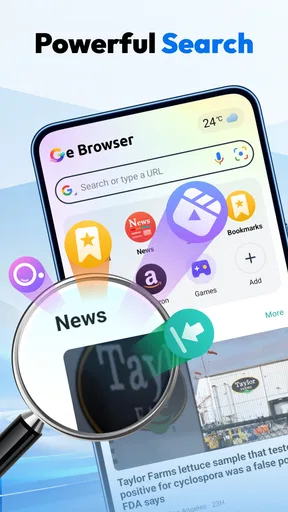
If I frequently revisit the same kind of page, I would first see whether the browser offers a straightforward way to keep that page accessible, such as a bookmark or a start-page shortcut. I would not assume either option exists until I see it in the interface. If it does, I would reserve it for a small number of genuinely useful destinations rather than fill the browser with links I will never open again.
There is also a useful two-browser workflow. I might use Ge Browser to inspect a link or handle a video-related task, then switch to my main browser for a site where I need a saved login, synced tabs, or a more familiar reading setup. That division avoids forcing one app to do every job and makes the decision to keep or uninstall Ge Browser easier: it needs to save time in its particular role.
For shared or borrowed phones, I would be more cautious. A private-browsing label does not by itself explain what remains on a device, how downloads are stored, or what other people can access. I would avoid saving personal videos or documents to a device I do not control, and I would check the app’s own controls before treating a session as temporary. When confidentiality is essential, the right choice is a browser and device setup whose privacy behavior I have specifically reviewed.
Where the convenience has limits
The combination of browsing and downloading is appealing, but it does not make Ge Browser a universal video tool. Some services restrict saving, some pages may not expose a usable download, and content can be protected or streamed in a way that does not produce a simple file. I would treat successful downloading as dependent on the page and the content rather than as a promise attached to every video.
There is a trade-off between convenience and trust, too. Before downloading from an unfamiliar site, I would consider whether the page is legitimate and whether I have the right to keep the material. I would not install extra files or follow a page’s unrelated prompts just to force a download. If a video matters, an official offline-viewing option from the service that hosts it may be a safer and more reliable alternative.
Compared with a conventional browser, Ge Browser’s appeal is its focused pairing of private browsing and video saving. A mainstream browser may be a better fit for people who prioritize cross-device synchronization, mature password management, or a broad ecosystem of extensions. A dedicated media app may be more suitable for organizing a large library of saved videos. I would choose based on the task I repeat most often, not on the assumption that one app should replace both.
There can also be friction when moving between apps. A download may not appear in the place I expect, and a page that works in one browser may behave differently in another. I would test the exact sites I use before building a routine around them. If the app consistently handles my usual pages and makes completed downloads easy to locate, the focused workflow is worthwhile; if not, switching back is the sensible choice.
The app has a 4.8 average from around 5,800 ratings, with over 500,000 installs and 106 written reviews. I treat that reception as a reason to consider trying it, not as proof that it will fit my own phone or browsing habits. The current version is 1.3.1, and I would keep expectations grounded in the experience of using that version rather than assuming every update will change the same things for every user.
Who will get the most from it
I can see Ge Browser working well for someone who wants a simple second browser, values keeping some browsing separate from their main routine, and occasionally wants to save a video for later. It is particularly easy to evaluate if you have a specific, legitimate use case: try the pages you visit, test whether the content you want can be saved, and confirm that you can play it offline before depending on it.
I would skip it if you need a full replacement for a browser with a well-established sync setup, depend on specialist extensions, or expect every streaming page to yield a downloadable file. I would also avoid relying on it for sensitive activity until I had personally checked the privacy options and understood how downloads are handled. Those are not reasons to dismiss the app; they are boundaries that help match it to the right job.
Developed by Av sign international, this free tools app is best judged as a focused convenience rather than an all-purpose internet suite. My recommendation is to install it only if the pairing of private browsing and video downloads solves a real, recurring problem for you. Start with one low-stakes page, learn where the browser keeps a completed download, and keep your usual browser for anything that needs its broader ecosystem. That small, repeatable workflow is where Ge Browser makes the most sense.
What we like
- Simple interface makes everyday browsing easy to navigate.
- Built-in ad blocking can reduce interruptions on supported pages.
- Private browsing helps keep session history off the device.
- Reader mode makes long articles easier to read.
- Bookmarks provide quick access to frequently visited pages.
What could be better
- Some websites may not work properly with ad blocking enabled.
- Private browsing does not hide activity from internet providers.
- It may lack advanced features found in major browsers.
- Browser performance can vary on older devices.
- Privacy depends on the app's data handling practices.