

 Analysis byWeUseApps
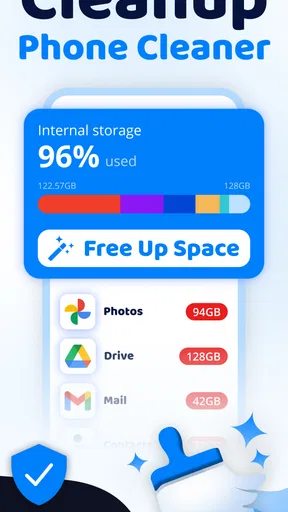
When a phone warns that storage is nearly full, the obvious answer is to delete something. The harder part is knowing what is safe to remove and whether the space you reclaim will actually help. Cleanup: Phone Storage Cleaner is a free tools app from Deep Flow Apps that brings junk removal, duplicate-photo cleanup, and memory and storage optimization into one place. I see its value less as a magic fix and more as a way to make a cleanup session feel manageable—provided you review suggested changes instead of tapping through on autopilot.
Getting past the first cleanup hurdle
The first decision is not which button to press; it is what kind of space problem you have. A phone with a crowded photo library calls for a different approach from one packed with large downloads or apps you no longer use. Cleanup is aimed at clutter and duplicate photos, so it makes most sense when you want help spotting material to review rather than a replacement for understanding what occupies your device.
That distinction matters because “junk” can sound more definitive than it is. A cleaner can help identify candidates, but I would still pause before removing anything I might need. Similar-looking images are not always interchangeable: one may be a sharper original, while another is a cropped or edited version. When you reach a proposed deletion, inspect the items first and keep the copy that matters.
It is also useful to separate storage from memory. Storage is the room your files and apps occupy; memory affects what the phone is handling while it runs. An optimization step may make the device feel less burdened in some situations, but it cannot create lasting file storage unless content is removed or moved. I would use Cleanup’s memory-oriented tools as maintenance, not as a substitute for freeing space when the storage meter is the real problem.
Before you start, check the basics
Cleanup is rated Everyone and requires Android 11 or later. Before installing, check your phone’s Android version so you do not spend time troubleshooting an app that the device cannot run. The app is listed at version 1.4.7, and the supported system requirement is the practical compatibility check to focus on.
Once installed, give yourself a moment to understand what the app is asking you to review. If a scan takes time or results do not appear immediately, avoid starting several cleanup attempts in a row. Let the current process finish, then inspect its results. That simple sequence reduces confusion about whether a scan is still working or whether you have moved on to another screen.
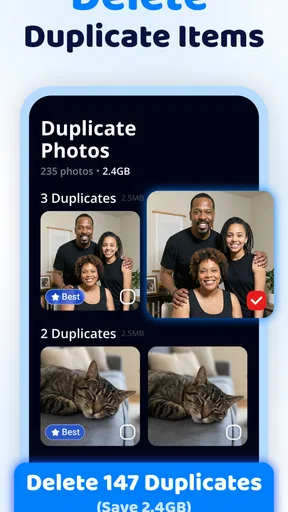
For a photo cleanup, I would start with a small review rather than trying to clear the whole library at once. Look closely at a few groups of similar pictures, decide which one you want to keep, and only then continue. This is especially useful for bursts, screenshots, and images received more than once: the duplicates may be obvious, but the versions you value can differ in ways a quick glance misses.
There is another worthwhile precaution: do not treat a cleaner’s recommendation as permission to delete personal material without checking it. If a photo is important, keep it until you know you have another copy or have made a deliberate choice. A cautious first pass is slower, but it is better than discovering later that a “duplicate” was the only version with the right crop or detail.
Building a cleanup routine that is easy to recover
I would use Cleanup in a short, repeatable workflow. First, decide whether the immediate goal is photo space, general clutter, or a phone that feels sluggish. Next, review the relevant suggestions without mixing several kinds of cleanup together. Finally, check the phone’s storage again and open the files or apps you rely on. This makes it easier to tell whether the action helped and to stop before deleting more than necessary.
A realistic example is a weekend trip with lots of nearly identical shots. Rather than selecting every match in one go, I would review each cluster, preserve the best image, and leave uncertain items alone. Then I would check whether there is still enough room for the next batch of photos. This approach turns duplicate cleanup into a controlled decision instead of a race to make the storage warning disappear.
If a scan or cleanup seems stuck, I would recover in stages: wait for the current screen to settle, return to the task once, and avoid repeating a deletion until I can see what happened. If the phone itself is unresponsive, use its normal system controls rather than repeatedly tapping inside the cleaner. These are general troubleshooting steps, not a guarantee that every interruption has the same cause.
When results look surprising, compare them with the phone’s own storage view before doing more. A cleanup action may not address the largest category taking up room, and a change in available space can take a moment to become obvious. The useful question is not simply “Did the app scan?” but “Did the type of content I reviewed account for the space I need?” If not, investigate the phone’s storage breakdown and decide what to tackle next.
For ongoing use, I would avoid turning cleanup into a daily ritual. A periodic review is more sensible than repeatedly scanning a phone that has plenty of room. It also gives you a chance to recognize your own habits: if screenshots accumulate, handle them in batches; if photos are the pressure point, focus on image review. Cleanup is most helpful when it supports a specific decision, not when it encourages deletion for its own sake.
When the phone, rather than the cleaner, is the problem
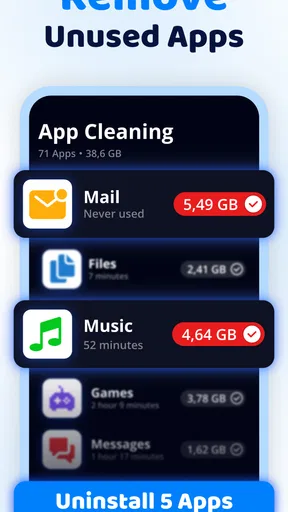
Not every storage warning points to duplicate photos or junk. Large apps, offline media, downloads, and other personal files can occupy substantial space. If the phone’s own storage screen shows one of those categories dominating, the app’s cleanup focus may not be the right tool for the biggest task. Go to the relevant system or app controls and review the content there instead of expecting a general cleaner to solve every kind of storage pressure.
Likewise, a phone that remains slow after a cleanup may have another issue. Low available storage can contribute to a cramped experience, but performance can also depend on what the device is doing and how much space remains after the review. I would not keep running optimization steps in the hope that they will fix a problem that persists unchanged. Check whether the phone has room, close or update the specific app causing trouble through normal device settings, and restart only if that fits the situation.
Be careful with the word “memory,” too. It is easy to expect an optimization tool to make an older or heavily loaded phone feel permanently new. I would judge the result by the task at hand: did the phone regain useful storage, or did a particular short-term slowdown ease? Those are different outcomes. If the real concern is a specific app’s cache or downloaded files, managing them through that app or the operating system can be more direct.
Cleanup is not the right choice for someone who wants every file deletion to be handled invisibly. The safer workflow involves looking at what is proposed and making a personal call, especially for photos. It may also be unnecessary if your phone has ample space and you already manage files comfortably with built-in tools. In those cases, the extra cleaner may add another step without solving a problem you actually have.
How it compares with built-in tools and other cleaners
Most phones already include storage controls, and those are often the best first stop when you want to see which apps or categories are consuming room. Cleanup’s appeal is that it packages several common maintenance goals—junk, duplicate images, and memory or storage optimization—into a dedicated tool. I would choose it when I want a guided review, particularly of a photo collection, and choose the system settings when I need a precise view of storage categories or direct control over a particular app.
Compared with a file manager, a cleaner is more oriented toward finding things to review; a file manager is better when you know exactly which folder or document you intend to move or remove. Compared with doing nothing, Cleanup can prompt a useful audit. But its convenience should not replace a backup habit or careful inspection. The best option depends on whether you want help locating candidates or direct, hands-on control over files.
The app has an average rating of 4.4 from around 379,000 ratings, with about 7,600 written reviews and over 10 million installs. Those figures suggest that many people have tried it, but they do not tell me whether its suggestions will fit your particular phone or cleanup habits. I would treat popularity as context, not as a reason to skip the careful review that matters most with personal files.
It is free to download, with in-app purchases ranging from $6.99 to $39.99 per item. I would check the purchase details in the app store before paying for anything and decide first whether the free experience addresses your actual need. If your goal is a one-time check of a crowded photo library, try the basic workflow before committing to an upgrade. The useful comparison is the value you get from the features you will genuinely use, not the number of cleanup prompts you can run.
Who I would recommend it to
I would recommend Cleanup to an Android user on a supported version who wants a single place to review photo duplicates and other clutter, and who is comfortable making the final deletion choices. It is especially suitable for someone who takes many similar photos, keeps screenshots for too long, or prefers a guided cleanup over searching manually. The key benefit is a more organized review process—not a promise that every storage or speed issue can be fixed by one scan.
I would skip it if you need a detailed file-management workflow, already know exactly what to remove, or are unwilling to inspect suggested photo deletions. The phone’s built-in storage screen may be a better fit when you need to identify the largest space users, while the original photo or media app may be the more sensible place to manage content you recognize. People who are short on space should also avoid deleting valuable material just to get an immediate change in the storage display.
My practical verdict is that Cleanup is worth considering as a cautious maintenance companion, not as an automatic clean-up button. Start with one clearly defined goal, review every personal file carefully, and check whether the phone’s own storage view confirms a useful result. That deliberate, small-batch approach is the difference between clearing clutter and accidentally removing something you meant to keep.
What we like
- Quickly identifies large files that may be taking up space.
- Duplicate photo detection can help reduce a cluttered gallery.
- A straightforward interface makes cleanup tasks easy to find.
- Useful for spotting old screenshots and similar images.
- Storage scans provide a clearer view of what is using space.
What could be better
- Review suggested deletions carefully to avoid losing wanted files.
- Photo cleanup features may require access to your media library.
- The app may show ads or offer paid upgrades.
- Results depend on the permissions granted on your device.
- Some cleanup suggestions may not free much storage space.