 Analysis byWeUseApps
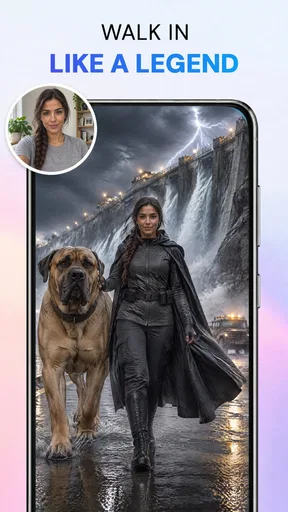
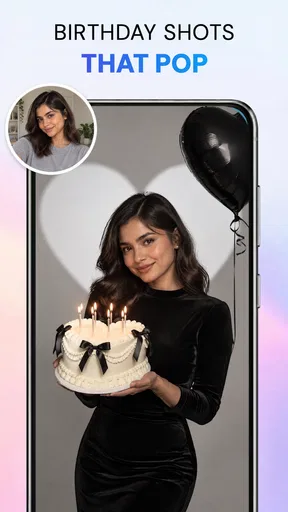
I judge a photo editor less by how many buttons it offers than by whether it helps me finish a picture without making it look less like the moment I wanted to keep. AI Photo Beauty Editor Studio is aimed at that practical middle ground: quick portrait retouching, background changes, object removal, and enhancement guided by AI prompts. I’d consider it when a photo needs a focused fix, not when I want a full desktop-style editing suite.
Start with the photo, not the prompt
My best starting habit with an AI editor is to decide what is actually wrong before asking it to change anything. A portrait may need a small retouch, while a product shot may be fine except for a distracting object or uneven background. Keeping the goal narrow makes the result easier to judge and reduces the chance of changing parts of the image I wanted to preserve.
The app’s prompt-led approach suits that kind of task. I would begin with the clearest instruction that describes the intended change, then inspect the result at normal viewing size and zoom in around important edges. For a face, that means checking eyes, hair, and the outline of the jaw; for a background edit, it means looking around shoulders and loose strands. Those spots reveal whether an AI change looks convincing far sooner than a quick glance at the whole image.
That workflow also helps with enhancement. Instead of treating “better” as a universal setting, I’d ask what the photo needs: more legibility, a cleaner subject, or a less distracting scene. If the original is already flattering, restraint is usually the better edit. A portrait that still looks like its subject is more useful than one that appears polished but unfamiliar.
As a photography app from ATQ - AI Lab, it focuses on edits people often want to make before sharing a picture. The app is free to install, with in-app purchases ranging from $3.99 to $39.99 per item. I’d treat the free entry point as a way to see whether its prompt-based workflow suits me, and check the purchase details in the app before committing to paid options.
Choose one job for each editing pass
One useful habit is to separate subject work from scene cleanup. If a portrait needs both a subtle retouch and an object removed from the background, I’d assess those as distinct decisions rather than piling every request into one broad instruction. This makes it easier to notice which change improved the image and which one introduced an awkward edge or an artificial texture.
The same principle applies to a casual group photo. If a stray item in the room draws the eye, the first question is whether removing it actually improves the picture. I would fix that distraction before changing the people’s appearance; otherwise, it becomes difficult to tell whether the finished image still feels natural. This is a small workflow choice, but it matters when AI edits can affect more than the obvious target.
Check the result at the size people will see it
Zooming in is important for spotting technical artifacts, but it can make tiny imperfections feel more significant than they will be in a message or social post. I compare the edited image at its likely viewing size as well as close up. If a cleanup looks smooth at normal scale but breaks around a subject’s outline when enlarged, I decide whether that flaw is acceptable for the intended use.
For anything that needs close scrutiny, such as a professional headshot or a product image where details matter, I would be stricter. AI edits can make a quick image more presentable, but a close crop may expose the exact area that was changed. In those cases, I’d rather use a tool with finer manual control if the result needs to stand up to careful inspection.
Settings and choices worth checking
Before editing, I’d check which image I selected, whether I’m working from the original I want to keep, and what the app asks me to confirm as I proceed. I would also review any purchase prompt before accepting it, particularly if I’m exploring features rather than completing a task. These are ordinary precautions, but they prevent a casual experiment from turning into an unwanted change or charge.
When writing prompts, plain language is more useful than a string of stylistic demands. I’d describe the target and the desired outcome, then avoid adding instructions that pull in opposite directions. For example, asking for a natural-looking portrait while also requesting a dramatic beauty treatment can lead to a result that feels inconsistent. A focused request gives me a clearer basis for deciding whether the edit worked.
It is also worth deciding how much of the original character to retain. A small cleanup can make a picture easier to share without erasing its context; a sweeping makeover may change the mood and make the image feel staged. I would keep a mental reference to the starting photo and ask whether the edited version still tells the same story. That check is especially helpful for personal photos, where a little imperfection can be part of the memory.
Repeatable habits make quick edits better
For a batch of portraits from the same occasion, I’d use a consistent standard rather than chase a different ideal for every image. That does not mean assuming the app has a batch-edit feature; it means keeping my own decisions steady. I’d use similar restraint, review each face individually, and avoid treating one successful result as proof that the same prompt will suit everyone.
That last point matters because lighting, skin tone, pose, and background all change how an edit reads. A request that looks believable on a well-lit close-up may produce a visibly altered look on a dim group shot. My shortcut would be to reuse the intent of a prompt, not blindly reuse its exact wording, and then inspect each person’s features before keeping the result.
For a quick listing photo or a picture of something I plan to sell, I’d prioritize clarity and an honest representation. Removing a distracting object or cleaning up the scene can help a viewer focus, but changing the item itself would undermine trust. The app’s object and background editing make this a useful kind of task to consider, while judgment still has to come from the person making the edit.
For a spontaneous everyday portrait, I’d keep the process even simpler: select the image, identify one improvement, make a modest request, and compare the result with the original. That is usually faster than trying multiple unrelated changes. If the first pass already solves the problem, stopping is part of the workflow. More editing does not automatically mean a better photo.
Where AI convenience reaches its limits
Prompt-based editing is appealing when I can describe the change more easily than I can make it by hand. Its trade-off is that the result still needs inspection. AI may interpret a request differently from what I had in mind, and broad changes can affect details beyond the target. If I need precise control over every contour, tone, or layer, a conventional editor with hands-on tools may be a better fit.
It is also not the right choice for every photograph. A heavily blurred or very dark image may lack the detail needed for a convincing enhancement, and an edit cannot reliably restore information that was never captured clearly. In that situation, I would first see whether another original is available or use a tool suited to careful manual correction, rather than expecting a prompt to rescue the image.
Compared with the usual alternatives in photography editing, this app’s appeal is its direct focus on beauty-oriented edits and AI-guided requests. A traditional editor is often better when I want exact sliders, masks, or a deliberate layer-by-layer process. A basic phone gallery editor is quicker for a crop or simple light adjustment. I’d choose this app when a portrait, background, or unwanted object calls for a targeted AI change and I’m willing to review what it produces.
Privacy-conscious users should also make their own decision before placing personal images into any editing workflow. I would be especially careful with sensitive photographs and check the app’s current terms and permissions before using it for them. That is a sensible distinction between experimenting with a casual picture and editing something I would not want handled casually.
Who should try it, and who should look elsewhere
I can see this being useful for people who routinely tidy portraits, prepare casual photos for sharing, or need to make a background less distracting without learning a complex editing program. Its Everyone content rating makes it broadly accessible, though younger users should still involve an adult when purchases or personal images are involved. The app’s current version is 1.3.3, and it requires Android 7.0 or later.
Its average rating is 4.2 from around 5,500 ratings, with 83 written reviews and more than a million installs. I read those figures as a sign of an established audience, not a guarantee that every prompt or photo will produce a result I like. The best test is whether its approach works on the kinds of pictures I actually edit.
I would skip it if my main priority were detailed manual retouching, predictable controls, or a workflow designed for professional image production. I’d also look elsewhere if I rarely edit portraits and only need to crop or adjust brightness, since a basic editor may be simpler. This app makes more sense when its specific AI-led tasks solve a recurring annoyance, rather than as an automatic replacement for every photo tool.
A practical verdict for everyday editing
AI Photo Beauty Editor Studio is worth considering as a focused helper for portrait cleanup and scene fixes, provided I treat its output as a draft to review rather than a finished truth. The strongest approach is to make one clear change at a time, check the details that matter, and stop when the picture still feels authentic. That keeps AI convenience from turning into over-editing.
For a friend deciding whether to install it, I’d say to start with a non-sensitive photo that has one obvious problem. See whether the prompt workflow fixes that problem without disturbing the rest of the image, and look over the purchase options before paying for anything. If that small test feels natural and saves effort, the app may earn a place in a casual editing routine; if you need exact manual control, a conventional photo editor is likely the better companion.
What we like
- Quick edits make portraits look polished with little effort.
- Beauty tools are approachable for first-time photo editors.
- A range of effects helps tailor the look of each image.
- Portrait adjustments can make subtle imperfections less noticeable.
- The app is useful for preparing photos to share online.
What could be better
- Automatic retouching may produce an unnatural appearance.
- Some editing tools may require in-app purchases.
- Results can vary depending on the original photo quality.
- Frequent effects may make portraits look similar.
- Editing options may take time to explore and fine-tune.