 Analysis byWeUseApps
I judge an alarm app less by how impressive it feels on the first morning and more by whether I still trust it weeks later. WakeBox has a clear, practical focus: it is a free productivity app built around alarms that can take over the screen when they go off, with optional email access. That makes it worth considering if a quiet notification is too easy for you to miss, though it also means the app’s appeal depends on a fairly specific waking problem.
My first impression is that WakeBox aims to make the alarm itself hard to overlook rather than turn waking up into a larger routine system. That simplicity can be a strength. I would not install it expecting a planner, sleep tracker, or a bundle of morning coaching tools. I would install it because I want a more noticeable alarm and am willing to check whether its full-screen alert works reliably on my device.
Why the first week can feel reassuring
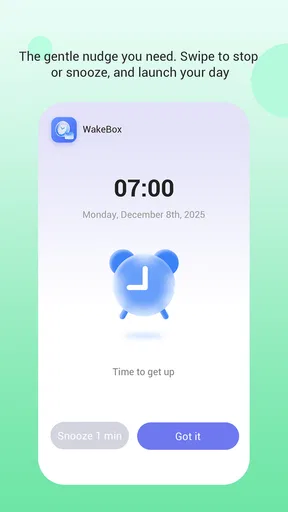
In the first few days, a full-screen alert has an obvious advantage over a small banner or a sound that blends into the room. If you tend to sleep through ordinary notifications, the promise of an interruption that occupies the display is more compelling than another alarm buried among apps. The central question is not whether this looks dramatic; it is whether it helps you notice the alarm when you are groggy.
A realistic use case is a weekday morning when you need to be up for an early shift but share a room or have learned to ignore a familiar ringtone. I would set WakeBox as a deliberate backup to my normal wake-up plan for a few mornings, then check whether the alert actually gets my attention without creating a new problem. A phone alarm should not be treated as a guarantee, so keeping a separate backup matters when missing the wake-up would have serious consequences.
The name is easy to remember, and the app is made by BLYTHEWOOD NY LLC. It is aimed at people who want a focused alarm clock rather than a broad productivity suite. That distinction is useful: if you already manage tasks and calendars elsewhere, WakeBox does not need to replace them to earn a place on your phone.
There is a practical setup tip here: test the alert while you are awake before relying on it for an important morning. Check the phone’s sound level, notification behavior, and any battery or do-not-disturb settings that might affect alarms. These checks are not glamorous, but they help separate an app issue from a device setting. I would also test the phone in the same general place where it will sit overnight, since an alarm that is audible on a desk may be less useful across a room.
WakeBox’s optional email access deserves a moment of thought during setup. Optional means it is a choice, not something I would assume is essential to the core alarm use. If you do not see a clear personal reason to grant it, you can decline and focus on whether the alarm function meets your needs. Anyone who prefers to minimize app access should make that decision deliberately rather than tapping through prompts on autopilot.
What changes once the novelty wears off
After the first week, the screen-filling alert itself is unlikely to feel novel. Its lasting value comes down to a simple habit: do you keep the alarm active, and does it continue to help you wake up? WakeBox is more likely to stick for someone whose existing alarms are regularly missed than for someone who already wakes promptly and simply likes trying new apps.
For month-to-month use, I would evaluate it against the alarm already built into the phone. The built-in option is convenient because it is already there and may be enough for a dependable routine. WakeBox has a clearer reason to stay installed when its more prominent alert solves a specific problem. If you cannot identify that problem after a few weeks, the default clock app is probably the tidier choice.
One useful workflow is to keep the number of alarms intentional. Rather than layering several alarms at short intervals, use WakeBox for the wake-up that matters and decide in advance what you will do when it sounds. Repeated alarms can become background noise; a more prominent alert does not automatically fix that if you train yourself to dismiss it without getting up. The app can get your attention, but the habit after the alert is still yours to build.
Another trade-off is the difference between waking yourself and avoiding disturbance to other people. A full-screen alert may make the visual interruption more noticeable to you, but it does not by itself solve the problem of sound in a shared room. If quiet waking is your priority, a wearable or another device designed for discreet alerts may fit better. If you need a strong audible alarm, place and test the phone carefully instead of assuming that a screen takeover guarantees you will hear it.
WakeBox has an average rating of 4.1 from around 2,600 ratings, alongside roughly 580 written reviews, and it has passed one million installs. Those figures suggest that it has reached a substantial audience, but they cannot tell me whether the app will behave well with a particular phone’s settings or suit a particular sleeper. I would treat them as context, not as a substitute for testing the alarm on the device I plan to use.
Keeping it dependable without making it a chore
The maintenance burden of an alarm app should be low: set the wake-up, keep the phone in a usable state, and avoid accidentally changing the routine. I would review the alarm after changing phones, adjusting notification settings, or installing a major system update. This is a small check with high practical value, especially if the alarm is part of a work or caregiving schedule.
WakeBox is currently at version 1.2.6 and requires Android 7.0 or later. It is free, which makes trying it low-friction, but I would still make the decision based on everyday performance rather than the absence of an upfront charge. The content rating is Mature 17+, a relevant detail for households where someone else manages app access on a shared device.
Because the app’s defining behavior is a full-screen alert, the most important maintenance question is whether the phone allows it to behave as expected while locked or when other settings are active. I would check those conditions directly instead of assuming every Android device handles alerts identically. A brief test before depending on it is more useful than repeatedly tweaking the app in the morning after something goes wrong.
I would also avoid turning an alarm into the only safeguard for a critical commitment. For an ordinary workday, WakeBox may be a convenient primary alarm once it has proved reliable for you. For a flight, an appointment that cannot be missed, or a morning when the phone may be switched off, a second alarm source is sensible. That is not a criticism unique to this app; it is good risk management for any phone-based alarm.
Where alert fatigue can set in
A full-screen interruption can be helpful, but stronger presentation is not the same as better sleep or better mornings. If you already wake easily, a forceful alert may feel excessive. If you dismiss alarms repeatedly, the same alert can become another cue you learn to ignore. In that case, changing bedtime habits or placing the phone farther from the bed may do more than installing a more insistent alarm.
There is also a personal comfort question. Some people dislike being confronted with a bright display as soon as they wake, especially in a dark room. If that describes you, test how the alert feels before making it part of every morning. A calmer standard alarm, a gradual-light device, or a wearable vibration may be a better match, depending on whether you need volume, light, or a discreet nudge.
The app’s narrow purpose is both its strongest point and its main limitation. It does not need to compete with a complete routine planner to be useful, but people who want sleep insights, smart scheduling, task lists, or a connected morning dashboard should compare it with tools built around those needs. I would not choose WakeBox on the assumption that a more prominent alarm will organize the rest of the day.
It is also worth thinking about the long-term routine rather than the first successful wake-up. If an alarm works because you are alert to the novelty, that effect may fade. The better test is whether you still respond to it on an ordinary, tiring morning several weeks later. I would keep it only if it solves a repeat problem, not merely because the interface feels different from the phone’s built-in clock.
Who should keep it installed
I can see WakeBox earning lasting space for someone who misses standard alerts and wants the alarm to be visually difficult to overlook. It is also a reasonable option for someone who prefers a dedicated alarm app, is comfortable checking phone settings, and does not need a wider sleep or planning system. The free price makes a personal trial straightforward, provided you test it before relying on it.
I would skip it if the built-in clock already wakes you reliably, if you want a quiet vibration rather than a prominent screen alert, or if you are looking for an all-in-one morning organizer. I would also be cautious about making it the sole alarm for a high-stakes wake-up until it has proved dependable in your actual routine. A backup is a better choice than trusting an untested setup.
Overall, I see WakeBox as a focused fix, not a universal upgrade. Its full-screen approach gives it a specific reason to exist, while optional email access leaves room for users to decide whether that extra access fits their preferences. With a 4.1 average and a free download, it is easy to try, but the lasting verdict should come from repeated mornings, not first impressions. If it reliably gets you out of bed without adding hassle, keep it; if not, your phone’s ordinary alarm or a different kind of wake-up device may serve you better.
What we like
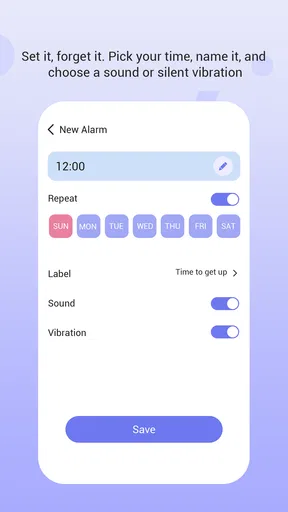
- Simple controls make it easy to set up an alarm.
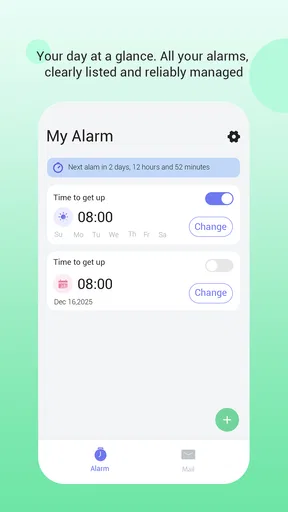
- Multiple alarms can help organize different wake-up times.
- A snooze option gives you extra time in the morning.
- Custom alarm sounds make waking up more personal.
- The app can suit users seeking a dedicated alarm clock.
What could be better
- Alarm reliability may depend on device settings.
- Battery optimization can interfere with alarms on some phones.
- Some features may require a paid upgrade.
- Frequent notifications could become distracting.
- The interface may feel basic compared with larger clock apps.