
 Analysis byWeUseApps
Managing a mobile account can be a routine task, but it becomes much more important when the app is hard to read, navigate, or use in a particular setting. T-Life is T-Mobile USA’s all-in-one app, designed to bring its customer experience into one place. I find its strongest promise straightforward: fewer separate stops when you want to interact with T-Mobile. The more useful question, though, is how comfortably that single-app approach works for people with different abilities, devices, and day-to-day circumstances.
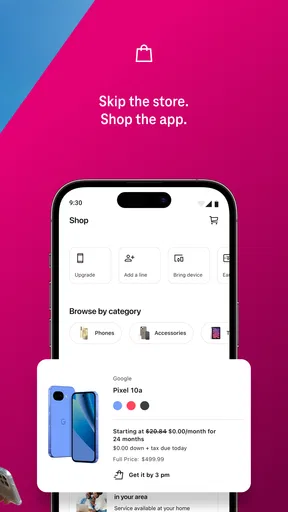
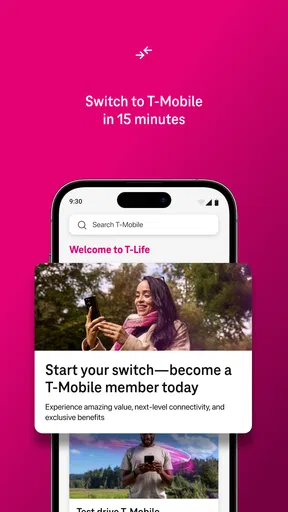
One place for the T-Mobile experience
T-Life is a free lifestyle app from T-Mobile USA. It has been available since June 6, 2016, and its broad purpose is captured in the simple idea of an all-in-one T-Mobile app. That framing is appealing if you prefer to begin with one familiar app rather than search among several tools. It also sets a high expectation: a central app should make common interactions feel clear and manageable, not merely gather them under one icon.
The app has reached more than 10 million installs, with an average rating of 4.6 from around 1.1 million ratings. Those figures suggest that many people use and assess it, but they do not tell me whether its interface will suit a particular person’s vision, dexterity, hearing, attention, or preferred way of working. Accessibility is not something a popularity score can settle. It depends on the details of the interface and how it behaves on each person’s device.
My overall lens for this review is practical inclusion: can a person make sense of the app, move through it without unnecessary friction, and use it in more than one kind of environment? I avoid treating any feature as an accessibility guarantee without a clear basis for doing so. Instead, I focus on what a prospective user should consider when deciding whether an all-in-one mobile experience fits their needs.
Readability and navigation
In any account-focused app, clear navigation matters as much as the range of things the app may bring together. A person should be able to tell where they are, understand what a control is meant to do, and recover easily if they take the wrong path. T-Life’s all-in-one positioning makes this especially important: gathering an experience into one place is helpful only when that place remains understandable rather than crowded.
For someone with low vision, readability is not just a matter of whether text is technically present. Contrast, text size, spacing, and the clarity of labels can all influence whether an interface feels comfortable over repeated visits. People who use screen magnification may also benefit from layouts that remain coherent when enlarged. I recommend checking how the app appears with the device’s own display and text settings enabled, then trying a few ordinary tasks before relying on it for something time-sensitive.
People who use a screen reader need controls with meaningful names and a sensible reading order. A button that is visually obvious may be less helpful if its purpose is not conveyed when spoken aloud. The same principle applies to icons: familiar symbols can save space, but labels and consistent placement help people who do not recognize them immediately. These are useful points to evaluate in T-Life on the device you intend to use, rather than assumptions to make from the app’s all-in-one description.
Navigation can also affect people with cognitive or learning disabilities, as well as anyone who is tired, stressed, or unfamiliar with the app. Predictable wording, a clear sense of progress, and straightforward ways to return to a previous screen reduce the effort required to complete a task. I generally prefer interfaces that make the next step apparent without demanding that users remember several earlier screens. A central app can support that kind of simplicity, but only if its organization stays consistent.
Motor and sensory considerations
Small touch targets, closely packed controls, and gestures that require precise movement can make an app tiring for people with tremors, limited dexterity, or one-handed use. They can also create trouble for someone using a phone while carrying a bag or holding a handrail. When exploring T-Life, pay attention to whether controls are easy to select and whether the interface offers clear alternatives when a gesture is awkward. The experience should feel usable at a comfortable pace, not like a test of speed or precision.
People who use switch access, voice control, or other assistive input methods may have different navigation needs from someone tapping directly on a screen. A useful app experience depends on controls being discoverable and ordered sensibly through the tools a person already uses. Because individual device settings and assistive technologies vary, the most dependable approach is to test the app with the same setup used for everyday tasks. That practical check is more informative than assuming that one interface will behave identically for everyone.
Sensory comfort deserves attention, too. Visual motion, dense screens, sudden changes, or a busy layout may be uncomfortable for some users, while others may find visual cues essential for understanding what is happening. People who are sensitive to stimulation often appreciate a calm, predictable interface; people who rely on strong visual distinctions need clear information rather than decorative effects. I would judge T-Life by how comfortable it feels during a normal session and whether the device’s available display preferences improve that experience.
Sound is another consideration, especially for people who are Deaf or hard of hearing, or for anyone using a phone in a quiet place. Important information should not depend solely on an audio cue. Conversely, a person who is blind may rely on spoken feedback and need the app to communicate changes clearly through assistive technology. The right experience balances channels and works with a user’s chosen settings. For an inclusive evaluation, try the app both with sound available and with the phone muted, and notice whether the essential information remains understandable.
Situational access in everyday life
Accessibility is not limited to permanent disability. A person may have temporary eye strain, an injured hand, a noisy commute, bright sunlight on the screen, or only a few moments to complete a task. The value of a central T-Mobile app is easiest to judge in these ordinary situations: can you find your way around when you are distracted, using one hand, or looking at the screen under less-than-ideal conditions?
People’s circumstances also change from day to day. Someone who normally reads small text may need a larger display after a long shift, while a person who can use touch controls at home may prefer voice input while on the move. An app that works well alongside device-level accessibility settings gives users room to adapt their setup. I would check those settings early, rather than waiting until an urgent interaction makes experimentation stressful.
For people with limited data, older devices, or a preference for keeping apps simple, the practical question is whether the app fits comfortably into their everyday routine. T-Life is free, which removes an app purchase as a barrier, but cost is only one part of access. Comfort, familiarity, and the ability to complete a task independently matter just as much. If someone is helping a family member, it can be useful to explore the interface together and let that person set the pace and choose the assistance they want.
Privacy and autonomy are part of inclusive use, too. A person may want to handle an account task independently, while another may choose to share the screen with a trusted helper. The best experience respects that choice and makes it clear what is happening as the user moves through the app. I recommend taking time to understand the app’s layout before a high-pressure moment, particularly if a person benefits from written notes, repeated practice, or support from someone they trust.
Where friction can remain
An all-in-one app can reduce the need to switch between separate places, but a broad scope can also make an interface feel busy. If key actions are mixed with less familiar content, users may have to spend extra time deciding where to go. Clear grouping and consistent language can soften that problem. When an app feels difficult, it helps to distinguish between not knowing the layout yet and a control or screen that remains confusing even after repeated use.
Another potential barrier is variation between people’s devices and settings. Text enlargement, screen readers, voice control, and other accessibility tools can interact differently with different interfaces. A layout that works comfortably for one person may be frustrating for another, even when both use the same app. That is why I would not describe T-Life as universally accessible based only on its general purpose. A short, hands-on trial with the tools a person actually uses is the most honest way to judge fit.
Familiarity can help, but it should not be mistaken for clarity. A user who already knows T-Mobile’s terminology may move through the app more confidently than someone encountering it for the first time. Plain language, helpful labels, and predictable patterns can make that learning curve gentler. If a screen does not make its purpose clear, pausing to explore is reasonable; people should not have to rush simply because they are using a mobile interface.
There is also a practical difference between being able to open an app and being able to complete a task comfortably. A person might manage the initial steps but find later screens difficult because of small text, unclear feedback, or demanding input. When assessing T-Life, consider the entire journey you expect to make, not just the first screen. That approach gives a more realistic picture of whether the app supports independent use in the circumstances that matter to you.
An inclusive verdict
T-Life has a clear appeal for people who want a single starting point for interacting with T-Mobile. Its free price and established presence make it easy to consider, while the all-in-one approach offers a simple idea to evaluate: does bringing the experience together make everyday use easier for you? For many people, the answer will depend less on the promise of consolidation and more on how comfortably they can read, navigate, and operate the app on their own devices.
My inclusive verdict is measured but positive about the concept. A central app can make a routine feel more convenient, yet genuine accessibility comes down to details such as readable screens, understandable labels, manageable touch controls, and compatibility with the tools a person relies on. I would recommend approaching T-Life with your own needs in mind: adjust device settings, try the tasks you care about, and notice where the experience feels smooth or where it asks for extra effort.
For a broad audience, the app is worth exploring as T-Mobile’s all-in-one mobile option, especially if you value having a single place to begin. For users with specific visual, motor, sensory, or cognitive needs, a personal trial is the sensible next step rather than relying on a general claim. The best measure is whether you can use it with confidence, at your own pace, and in the situations that make up your everyday life.
Ultimately, T-Life’s promise is convenience, and convenience only counts when it works for the person holding the phone. If its layout and controls fit your preferences, it may become a useful part of your routine. If a particular screen creates friction, take that seriously and consider what device settings or alternative ways of getting help work best for you. That balanced approach keeps the focus where it belongs: on practical independence and a comfortable experience.
What we like
- Manage T-Mobile account details without visiting a store.
- View eligible plan benefits and account information in one place.
- Find nearby T-Mobile stores and service locations.
- Use in-app support to get help with account questions.
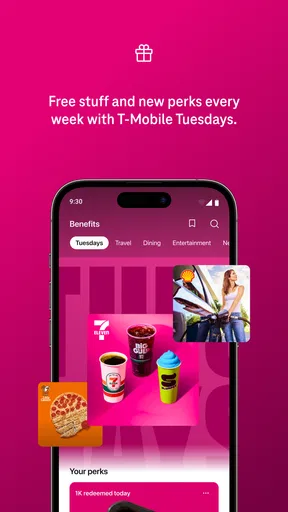
- Check for personalized offers tied to your T-Mobile account.
What could be better
- Many features require an active T-Mobile account.
- Some offers and tools are limited to eligible customers.
- Account actions may require identity verification.
- App performance can vary by device and network connection.
- Some users may find the menus difficult to navigate.