 Analysis byWeUseApps
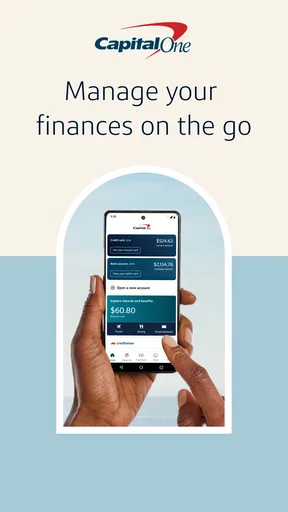
I judge a banking app less by how many buttons it has than by whether it helps me handle an ordinary money chore without turning it into a project. Capital One Mobile is built around that practical idea: it brings account management and common card tasks into a phone app, with bill payments, card locking, and check deposits among its central uses. It is a finance app from Capital One Services, LLC, and I’d consider it most useful for people who already bank with Capital One and want routine tasks close at hand.
The app is free, has an Everyone age rating, and has been available since July 29, 2011. Its current version is 6.55.5, with iOS 11 as the minimum operating-system requirement. That long run matters mainly as context: this is an established mobile-banking product, not a new tool whose everyday role is still taking shape. Its average rating is 4.5 from around 1.7 million ratings, and it has more than 50 million installs. Those figures suggest broad use, but they don’t tell you whether its account options match your needs; that depends on your relationship with Capital One.
What the app is like to use now
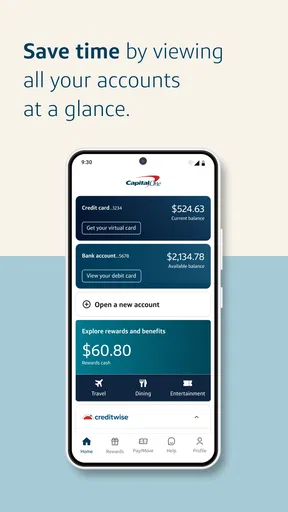
My overall impression is of a companion to Capital One accounts rather than a general-purpose finance hub. The value is in being able to check in on your banking and take action from the same place. Instead of treating a phone as a passive window onto a balance, the app gives common tasks—paying bills, managing a card, and depositing a check—a place in the same mobile workflow.
That distinction is useful when deciding whether to install it. If you want one place to see and manage Capital One accounts, the app is a natural fit. If you want a neutral dashboard that pulls together accounts from many banks, or a tool focused on budgeting across providers, a broader finance app may serve you better. I would not choose a bank-specific app expecting it to replace every financial tool on my phone.
The strongest practical feature is the combination of access and action. Seeing an account is helpful, but being able to deal with a card or bill in the same session can save a separate trip to a desktop browser or a call to the bank. In my view, that makes the app most compelling for people who handle small banking tasks as they arise rather than setting aside a weekly hour to manage everything.
Everyday jobs it handles well
Consider a realistic moment: I’m heading out and realize I’m unsure whether I locked a card after using it earlier. A mobile card lock gives me a direct step to take from the app, instead of searching through a wallet or waiting until I get home to check from a computer. That convenience is especially useful when the concern is temporary or when I want to respond quickly while I work out what happened.
There’s an important distinction, though: a card lock is a control for managing card use, not a substitute for contacting the bank about a suspected account compromise or a card that is genuinely lost. I’d treat it as a useful first action, then follow the bank’s guidance for the situation. That’s a sensible way to use a quick in-app control without assuming it resolves every security problem.
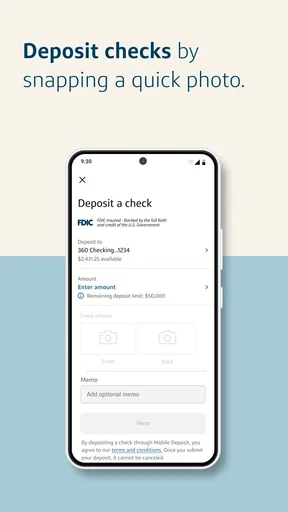
Check deposit is another feature that can change a routine. If I receive a paper check and don’t need cash immediately, handling the deposit by phone can spare me a branch visit. The trade-off is that the check still has to be captured carefully: a blurry image, poor lighting, or a rushed photo can turn a quick task into a retry. I’d do it on a clear surface, review the image before submitting, and keep the check until the deposit is reflected and I’m comfortable that the process is complete.
Bill payment is most useful when I already know which bill needs attention and want to deal with it while I’m thinking about it. I would still check the payee, amount, and timing rather than treating a confirmation screen as a reason to stop paying attention. A bank app can make the action convenient, but the user remains responsible for choosing the right details and allowing time for a payment to go through.
Where it fits among banking alternatives
Compared with visiting a branch, the app is better suited to ordinary tasks that don’t require in-person help. Compared with desktop online banking, its advantage is immediacy: I can respond when a card or payment question comes up, rather than postponing it until I’m at a computer. The desktop experience may still be preferable when I want to review several details carefully or work through a longer session on a larger screen.
Compared with a budgeting app, Capital One Mobile has a different job. It is tied to the bank’s own services, which can make account-related actions more direct, while a cross-bank budgeting tool may be better for someone trying to understand spending across multiple institutions. I wouldn’t ask this app to provide the same independent overview. The right choice depends on whether the priority is managing a Capital One relationship or analyzing a wider household picture.
People who don’t bank with Capital One should be cautious about expecting much value from it. A polished interface cannot compensate for the lack of a useful account relationship. Likewise, someone who prefers to do all banking in person, or who rarely uses a smartphone for financial tasks, may not gain enough to justify making it part of a routine.
How its long-running product history affects the experience
The app’s release history reaches back to 2011, while version 6.55.5 is the current version. Those facts show that the product has had a long life and continues to receive versioned updates. They do not, by themselves, reveal which screens or capabilities changed in a particular release, so I would not read a version number as proof of a specific redesign or newly added feature.
For an existing user, the practical takeaway is to keep the app current through the app store and check the release notes there when an update appears. Updates can matter to compatibility and day-to-day reliability, but I would separate that sensible habit from assumptions about what any individual update contains. The version number is a snapshot of the current build, not a promise that a familiar workflow has changed—or that it has stayed exactly the same.
That caution is relevant because mobile banking is a routine people notice most when something feels different. If a task you use often appears to have moved after an update, take a moment to explore the relevant account or card area rather than assuming the feature has disappeared. For payments or deposits, I’d also review the final details before confirming, especially after installing a new version. A quick check is a small cost compared with correcting a mistake.
For someone considering the app for the first time, its long history may be reassuring in a limited sense: Capital One has maintained a mobile product over many years, and the app has reached a large audience. But longevity and popularity don’t guarantee that every function will suit every customer, or that every person will find the layout intuitive. I’d decide based on whether the app supports the tasks I actually need, not on install totals alone.
Useful habits and real trade-offs
One non-obvious benefit of keeping card controls and payment tasks together is that it can help me act at the moment a question arises. If I notice a charge or remember a bill while away from home, I can check the relevant banking context and take the next appropriate step in one sitting. The trade-off is that quick access can encourage hurried decisions. I’d use the convenience to start a task, but still pause to verify the details before submitting anything consequential.
A second practical point is to treat mobile check deposit as a small workflow, not just a camera feature. Good lighting, a steady image, and a final review make the process more dependable than snapping a photo while distracted. If the check is urgent or the image keeps failing, another deposit route may be less frustrating. The app is at its best when the mobile option is genuinely easier, not when I force it into a situation where speed or certainty matters more.
A third trade-off is concentration of access. Having account tasks on a phone is convenient, but it also means I should protect access to the device and avoid making sensitive financial decisions when I’m distracted or using an untrusted device. That is good banking hygiene rather than a special feature of this app. I’d also keep the app as one part of my financial routine, not as the only place I record bill deadlines or household plans.
One question many users have is whether this is useful without a Capital One account. In practice, its main purpose is to manage Capital One banking, so I would not install it expecting a general finance service. Another common question is whether it can remove every need to visit a branch or use a computer. For routine mobile-friendly tasks, it can reduce those visits, but complex account matters or situations needing personal assistance may still call for another channel.
People also wonder whether a card lock should be used whenever they feel uncertain. I’d use it as a convenient control when I want to restrict card use temporarily, while treating suspected fraud, a missing card, or a serious account concern as a reason to follow Capital One’s official instructions rather than relying on the lock alone. And if a check deposit is not going smoothly, I’d stop and choose a dependable alternative instead of repeatedly submitting unclear images.
Who should choose it—and what to watch
I’d recommend Capital One Mobile to an existing Capital One customer who wants to handle everyday banking from a phone, especially someone who values quick card management, bill payment, and mobile check deposit. It can also suit a busy person who prefers to resolve a small task when it comes up rather than save everything for a desktop session. The free price removes an upfront purchase decision, though it doesn’t change the more important question of whether its bank-specific focus matches your accounts.
I’d skip it if you’re looking for a bank-independent money manager, if your main need is a detailed cross-provider budget, or if you don’t use Capital One. I’d also avoid depending on any mobile app as the sole answer to urgent account problems. In those cases, a budgeting service, your primary bank’s own tools, or direct customer support may be a better fit.
What I would watch over time is whether the app continues to make its most common tasks easy to find and complete as new versions arrive. The current version gives a clear point of reference, but future changes are expectations, not facts I can assume. For now, my verdict is straightforward: Capital One Mobile is a practical, bank-specific tool whose best feature is reducing friction around everyday account actions. It isn’t a complete financial command center, but for the right Capital One customer, it can make routine banking feel less like a chore.
What we like
- Biometric sign-in makes account access quick on supported devices.
- Card lock controls help limit damage if a card goes missing.
- Custom alerts make it easier to monitor account activity.
- Mobile check deposit saves a trip to a branch or ATM.
- Virtual card numbers add a layer of security for online shopping.
What could be better
- Some features are available only to eligible Capital One customers.
- The app offers limited support for accounts from other banks.
- Mobile check deposits may have limits and processing delays.
- Account access depends on a reliable internet connection.
- Some transactions may take time to appear in activity history.