 Analysis byWeUseApps
I think Canva is at its best when you treat it as a practical design workspace, not as a magic button that makes every creative decision for you. It helps me get from a rough idea to a shareable graphic, photo edit, or short video without first learning a traditional design program. The trade-off is that the convenience comes with choices to manage: templates can make projects look familiar, and the most polished result still depends on your own editing.
A reliable starting workflow
As an art and design app from Canva, Canva brings layouts, text, images, and video tools into one mobile-friendly place. I usually begin by deciding where the finished piece will be used: a social post, a presentation slide, a flyer, or a video. That small choice matters because it gives the canvas a sensible shape and stops me from squeezing one design into every format.
From there, I pick a template only as a starting point. I replace its wording first, then adjust the images and colors, and finally check spacing and alignment. This order saves time: changing the copy early reveals whether the layout has enough room, while polishing colors before the text is settled often means doing the same work twice.
For example, if I need to announce a neighborhood event, I can make a square post, put the event name and date where they are easy to scan, and keep the location and extra details secondary. I would then preview it at phone size. A design that looks balanced when zoomed in can become cramped on a small screen, so I judge readability at the size people are likely to see it.
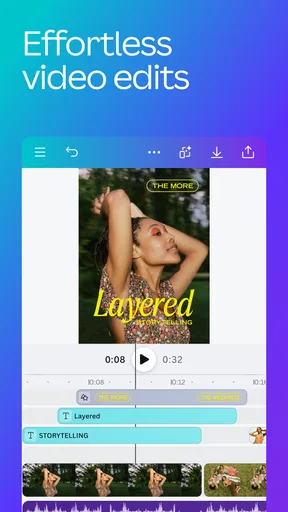
The same approach works for a quick video. I first decide what the viewer should understand in the opening moment, then arrange the visuals and text around that message. A template can provide a useful structure, but I still review every scene for timing and legibility rather than assuming the default arrangement suits my content.
Make the first draft do less
One useful habit is to keep the first draft deliberately simple: a clear headline, one main visual, and only the details the audience needs. Canva makes it easy to add decorative elements, but having many options is not the same as needing to use them. If a sticker, shape, or extra type style does not clarify the message, I leave it out.
I also keep an eye on consistency across related designs. Reusing a small set of colors and type choices gives a series of posts a recognizable feel, even when each one has different content. This is especially helpful for a club, small business, or personal project that needs several pieces over time rather than one isolated graphic.
Check the setup before you spend time editing
Canva is free to download, with in-app purchases ranging from $1.49 to $300.00 per item. I would check whether the particular design elements and options I want are available to me before building an entire project around them. That is a more useful approach than finishing a draft and only then discovering that a desired asset or capability sits behind a purchase.
The app is rated Everyone 10+, and it is available on Android from version 8.0 onward. Its current version is 2.383.0. Those details help establish whether a device is a fit, but the more practical question is how you plan to work: a phone is convenient for quick edits and publishing-ready drafts, while a larger screen is easier for carefully aligning many elements or reviewing a dense layout.
When I open a template, I look for elements that I can actually change and check how the text wraps after replacing the sample copy. A headline that fits the template’s original wording may not fit mine. I also inspect the edges of the canvas and the visual hierarchy before adding detail. These checks are simple, but they prevent the common frustration of discovering late in the process that a key line is too small or crowded.
Build repeatable habits, not a pile of drafts
For recurring work, I find it more efficient to settle the basic visual decisions once and carry them forward. I might keep a consistent palette and headline style for a series, then change only the image and message for each new post. This creates a recognizable family of designs without forcing every item to be identical.
A second time-saving pattern is to duplicate a finished layout for the next item in a series, then replace the content carefully. The key is to inspect every copied element: old dates, leftover text, and an image that no longer fits can survive a quick edit unnoticed. I treat the duplicate as a scaffold, not a finished result.
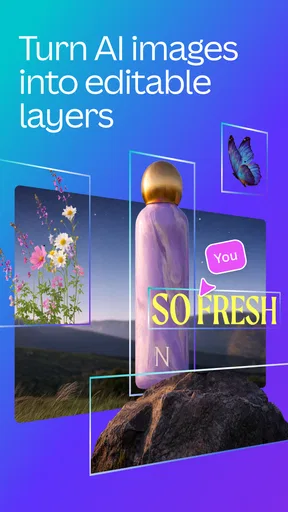
For prompt-based generation, I would start with a clear description of the subject and intended mood, then refine the result instead of expecting the first output to match a precise mental picture. Generated material is a starting point, not a substitute for review. I check whether it suits the context, whether it distracts from the message, and whether a conventional photo or manually chosen element would serve the design better.
Canva’s broad toolkit is valuable here because I can move between a graphic, an image treatment, and a video-oriented project without starting from an entirely different app. Still, I avoid adding motion or extra visual effects simply because they are available. On an announcement, for instance, clear event details matter more than a busy transition.
Where the convenience has limits
The biggest creative limitation I notice is the temptation to rely too heavily on templates. They make it easy to produce something presentable, but a popular layout can also make unrelated projects feel alike. I change the hierarchy, crop, or color choices when a template’s personality overwhelms my own message, and I am willing to start with a blank design when the preset structure does not fit.
It is also not the tool I would choose for every kind of image work. If I need painstaking control over individual pixels, detailed compositing, or a complex professional editing workflow, a dedicated desktop design or photo application is likely a better fit. Canva favors speed and accessible assembly over the depth of a specialist tool. For everyday promotional graphics and straightforward edits, that balance is often exactly what I want.
On a phone, arranging many small objects can feel fiddly, particularly when text boxes and decorative elements sit close together. I zoom in when precision matters and review the full design afterward so that small adjustments do not throw off the overall balance. For a long document or a design with many layers, I would rather use a larger display than try to finish everything through repeated pinch-and-drag corrections.
Another trade-off is choice overload. A large library of templates and visual options can help when I am stuck, but browsing too long can consume more time than making a simple design from scratch. I set a purpose before browsing and stop once I find a structure that supports it. That keeps the app from turning a quick task into an afternoon of comparing near-identical layouts.
Who will get the most out of it?
I would recommend Canva to someone who regularly needs social posts, invitations, simple presentations, event notices, or short visual content and wants an approachable way to make them. It is particularly useful if design is only one part of the job and speed matters more than fine-grained control. A small organization can use the same basic visual style for repeated announcements, while an individual can turn an idea into a shareable draft without starting from a blank technical canvas.
It may not be the right choice for someone who wants a fully manual, specialist editing environment or dislikes template-led workflows. If you already have a precise design process in a professional graphics editor, switching to Canva may feel limiting rather than liberating. And if you only need to crop a photo once in a while, a simpler built-in editor may be enough.
The app’s popularity is substantial: it has over 500 million installs, an average rating of 4.8 from around 28 million ratings, and about 104,000 written reviews. I take that as a sign that it serves a wide range of everyday creative needs, not as proof that every feature will suit every user. The useful test is whether its fast, template-centered approach matches the kind of work you actually do.
My verdict after making it part of a workflow
What I value most is the way Canva lets me move from a rough brief to a coherent visual without making me learn a complicated design system first. Its strongest results come when I bring a clear message, make a few repeatable decisions, and review the finished piece at the size and context where it will be seen. The app can speed up the mechanics, but good judgment still comes from the person using it.
I would start with one real task rather than exploring everything at once: make an event graphic, a short post, or a simple video, then notice which parts of the process save time and which feel awkward. Keep a consistent style for repeated work, verify copied details, and be selective about generated or decorative elements. That is how I get more than a quick template out of it.
Overall, Canva is a strong everyday choice for accessible design and quick visual content, with clear limits for highly detailed professional editing. Canva, developed by Canva, is free to try, though some in-app purchases can be costly depending on what you choose. If your goal is to create clean, useful designs efficiently—and you are happy to make the final judgment calls yourself—I think it is well worth keeping in your toolkit.
What we like
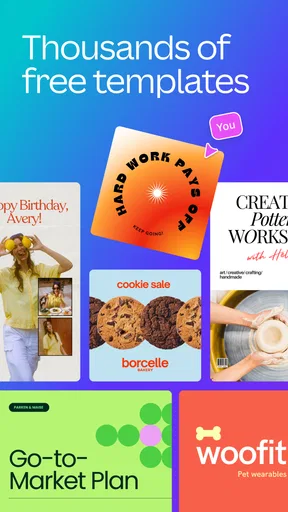
- A large template library makes it easy to start designs quickly.
- Cloud sync lets you continue projects across supported devices.
- Brand kits help keep colors and fonts consistent across designs.
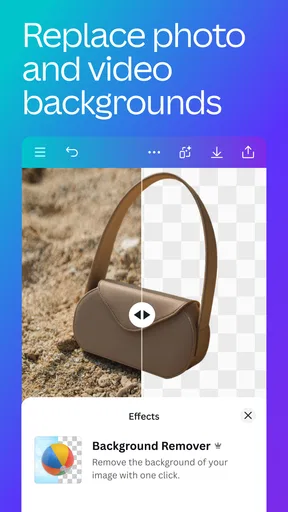
- Background removal can simplify product and portrait edits.
- Collaboration tools support shared editing and feedback.
What could be better
- Many premium templates and assets require a paid subscription.
- Some editing tools can feel cramped on a phone screen.
- Large projects may take time to load on older devices.
- Advanced design controls are less precise than desktop software.
- Export options and features can vary by subscription plan.